
Chapter 1
Giver (Resource)
For anyone who wants to give: money, goods, a service, or their time.
Individuals and businesses sign up the same way. HelpLift's word for a giver is a Resource.
Sign up
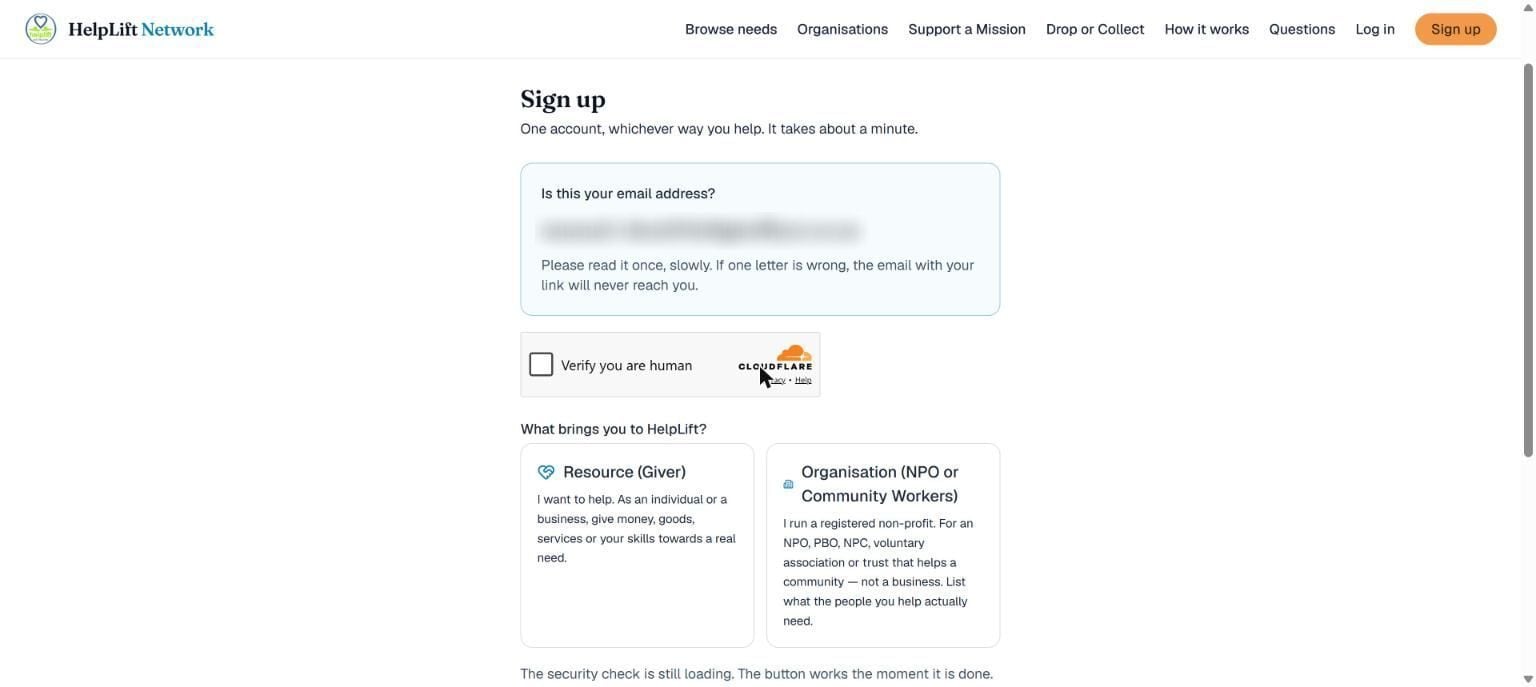
Here is what to do, one step at a time:
- Type your email address and a password (at least 8 letters or numbers), then tap Next.
- HelpLift shows your email back to you, nice and big. Read it slowly. If even one letter is wrong, your confirmation email will never arrive. If it is wrong, tap No, let me fix it.
- Tick the little box that says Verify you are human. This proves you are a real person, not a computer program.
- Tap the card that says Resource (Giver). That is you.
- Tap the orange Yes, that is right button to finish.
Running a non-profit instead? Choose Organisation (NPO or Community Workers) on the same screen, then follow the Organisation Admin guide.
Check your email
- HelpLift sends you an email. Open it and tap the link inside.
- The link opens a HelpLift page called Finish confirming, like the one below.
- Tap the blue Confirm and continue button. Until you do, your account is not ready yet.
Why there is a button as well as a link: Some phones and email programs open links by themselves to check they are safe. The button makes sure it is really you who confirms, not your phone doing it by accident.
If the email does not come:
Tell us a little about you
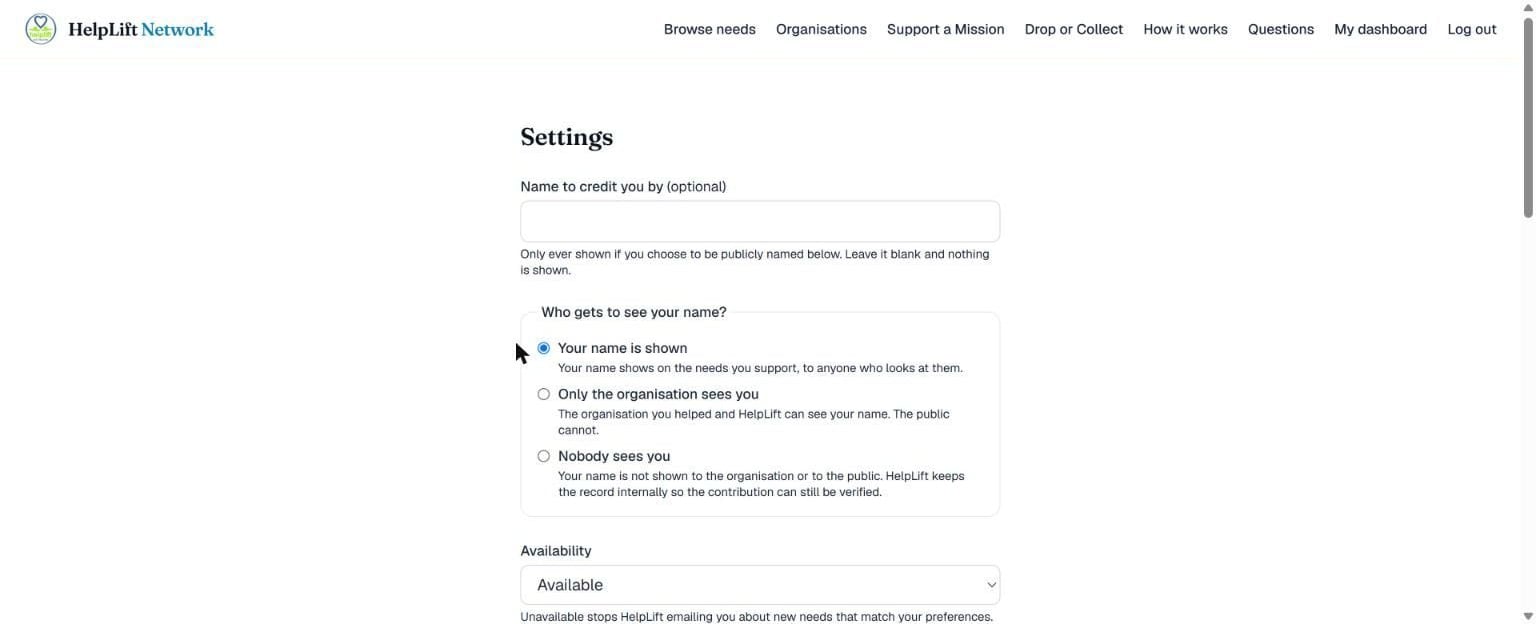
This is your Settings page. You can come back any time and change your mind. Three things to decide:
- Name to credit you by, if you want one. You can leave it blank.
- Who gets to see your name? Choose Your name is shown (anyone can see it on the needs you support), Only the organisation sees you, or Nobody sees you (you stay private, even from the organisation; HelpLift still keeps the record so your help can be confirmed).
- Availability. Leave it on Available to keep hearing about matching needs by email.
Further down you can pick the kinds of needs and the provinces you care about. Leave a list empty and it means everything.
Look for needs
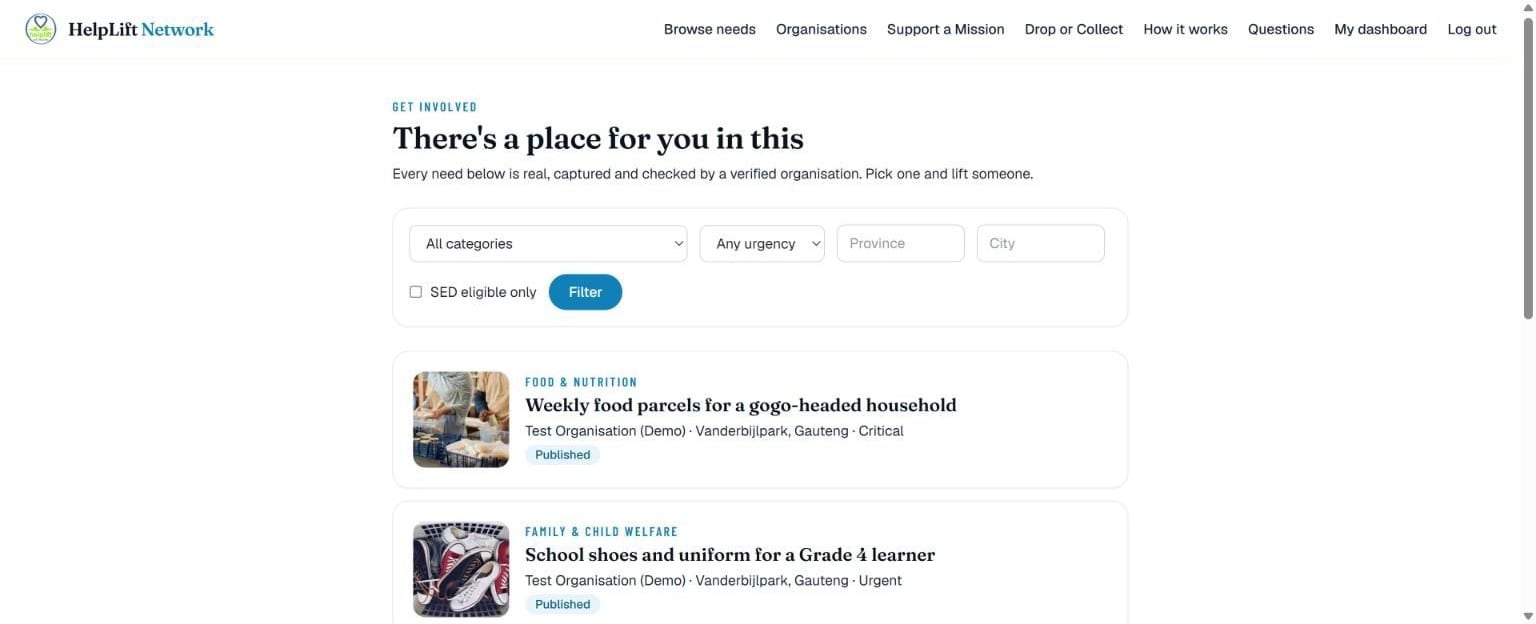
This is the main list of people needing help. Each card shows what kind of need it is, how urgent it is, and roughly where. Use the boxes at the top to narrow it down: by type of need, how urgent, province or city.
Your own dashboard also has a Suggested for me tab, picked just for you, and it always tells you why it picked something.
Find an organisation
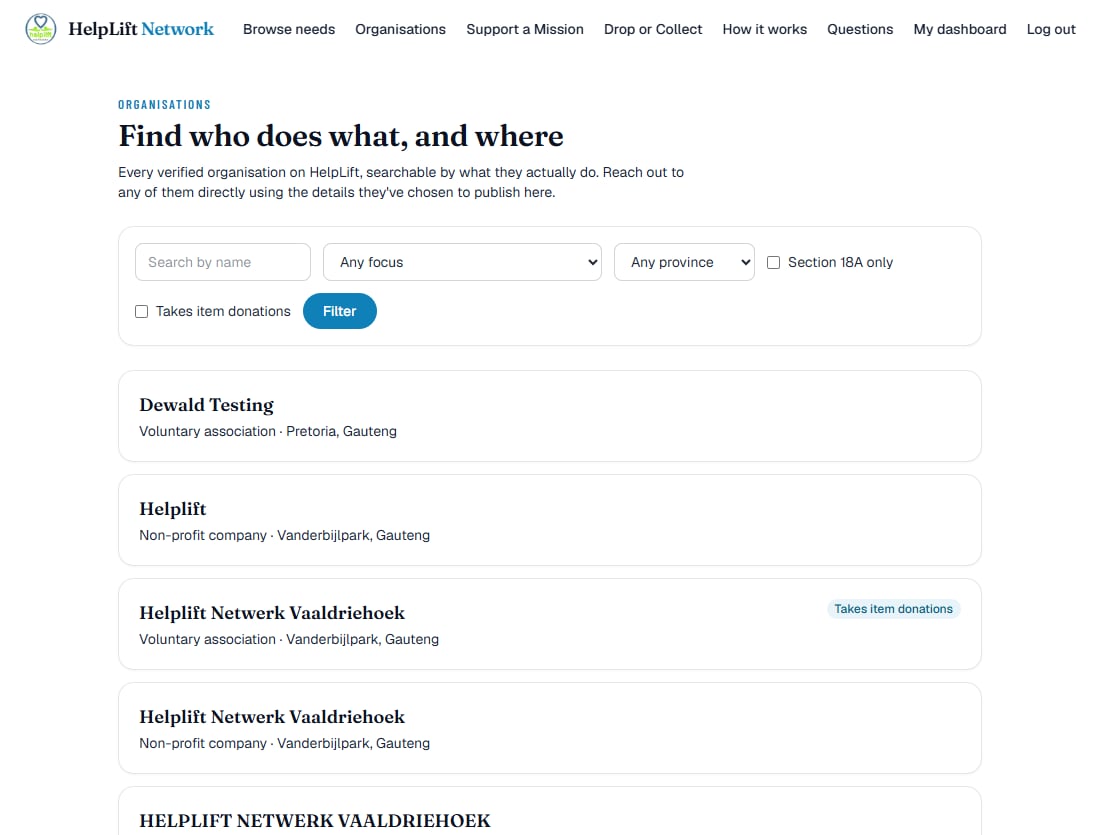
This is different from browsing needs. It is a list of every verified organisation, so you can find one by what it does, not only by what it happens to be asking for right now. Search by name, or filter by focus area, province, whether it can give Section 18A tax certificates, or whether it takes item donations.
Open an organisation's page and tap Follow to hear about its new needs first. Following never shares your details with them. It is one-way.
Open a need
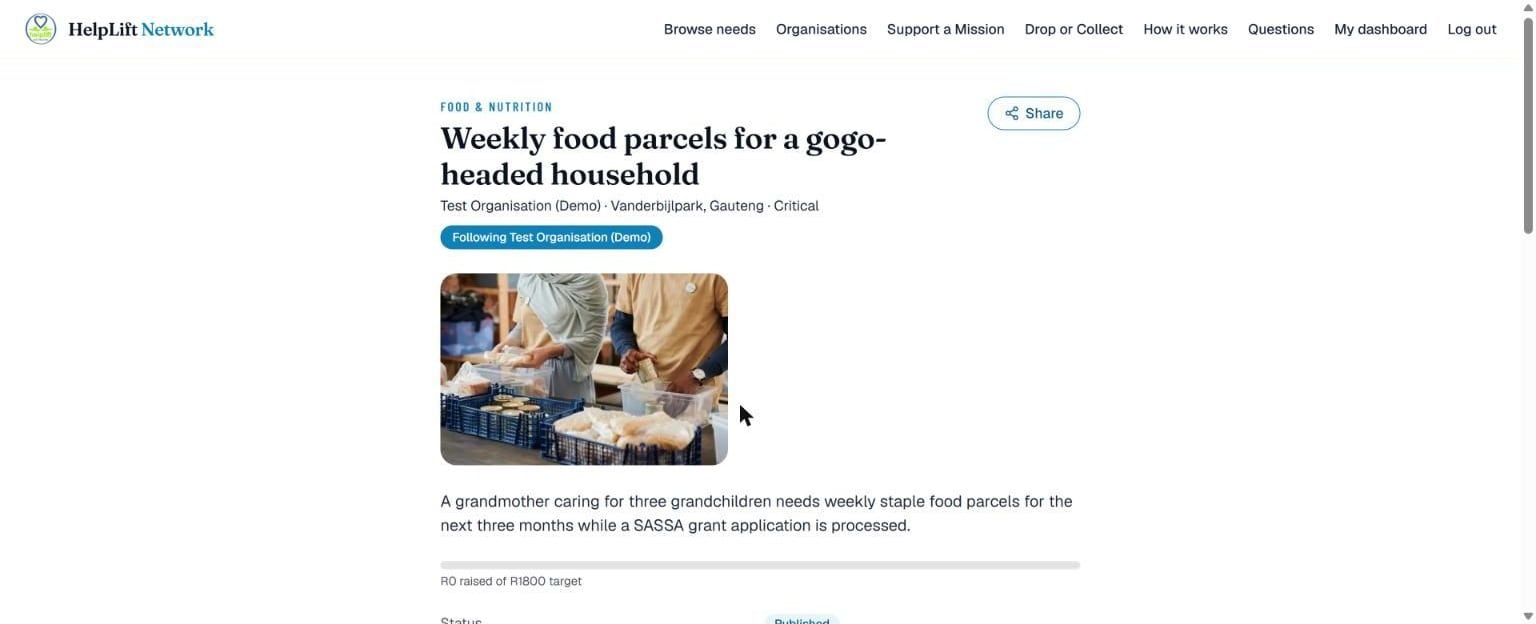
Tap a card to open its full page: a photo, the story behind it, which organisation posted it and, for a money need, a bar showing how much has been raised so far. If you already follow the organisation, a badge says so right here.
The Share button at the top sends it to WhatsApp, Facebook, or as a link, so you can ask friends to help too.
Give something
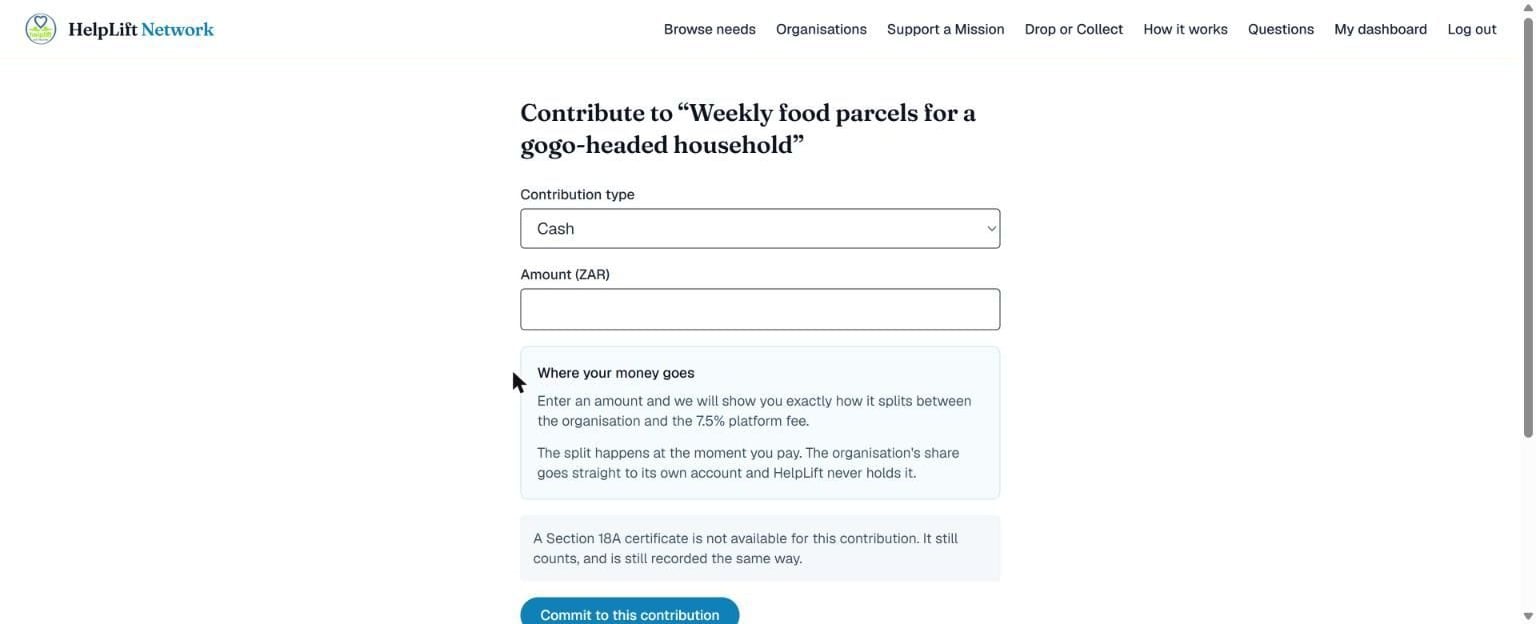
Tap I want to help on a need to open this form. You can give in three ways:
- Money. Type an amount. The screen shows you straight away exactly how much goes to the organisation and how much is HelpLift's fee. You do not have to give the whole amount: any part helps, and the need shows how much is still needed.
- Goods. Describe what you are giving, like clothes or food. The organisation will contact you to arrange the handover.
- A service. Describe what you will do, like fixing something or teaching a skill.
Then tap Commit to this contribution.
Giving cash or goods to an organisation that qualifies? Tick the box for a Section 18A tax certificate and fill in your tax details. It is never offered for a service. That is a SARS rule, not a HelpLift choice.
Good to know: Once you pay, it cannot be undone or refunded. The screen always tells you this clearly before you pay, so there are no surprises. Why there are no refunds
If Cash is not on the list: The organisation may not have connected its bank account yet, or giving money may not be switched on yet. The form says which, and you can still give goods or a service straight away.
Support a Mission
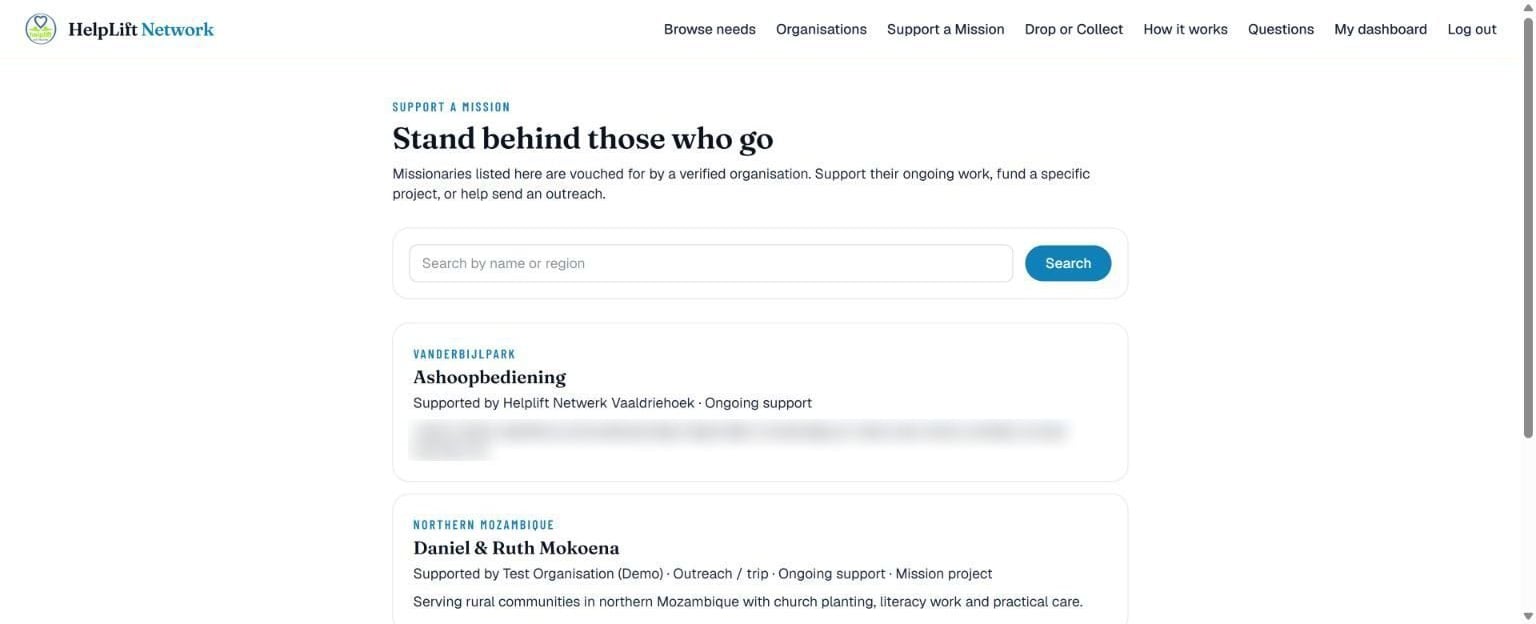
This is a separate list from needs. Here, an organisation introduces a missionary it vouches for: their story, where they serve, and how you can support them, whether that is ongoing support, a specific project, or a one-time trip.
Give something nobody asked for yet
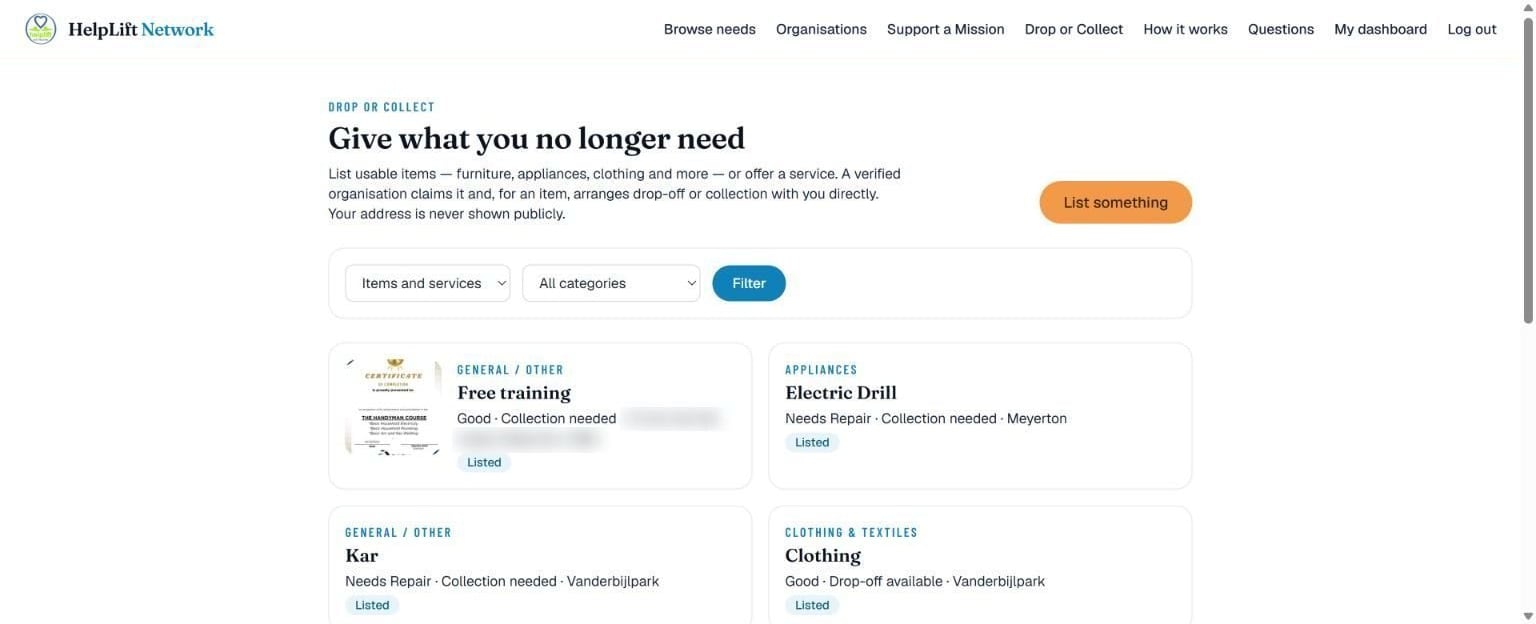
This is called Drop or Collect. It is for when you have something to give but nobody has posted a need for it, like an old couch, spare school shoes or free tutoring.
- Tap List something and say what you have. Add a photo if you can.
- Say whether you will drop it off, or whether someone needs to come and collect it.
- Give your phone number, so the organisation that claims it can contact you.
There is a Quick list button too. Use it when someone told you about something over WhatsApp and you just want it listed fast: one box to type into, one photo, and a phone number.
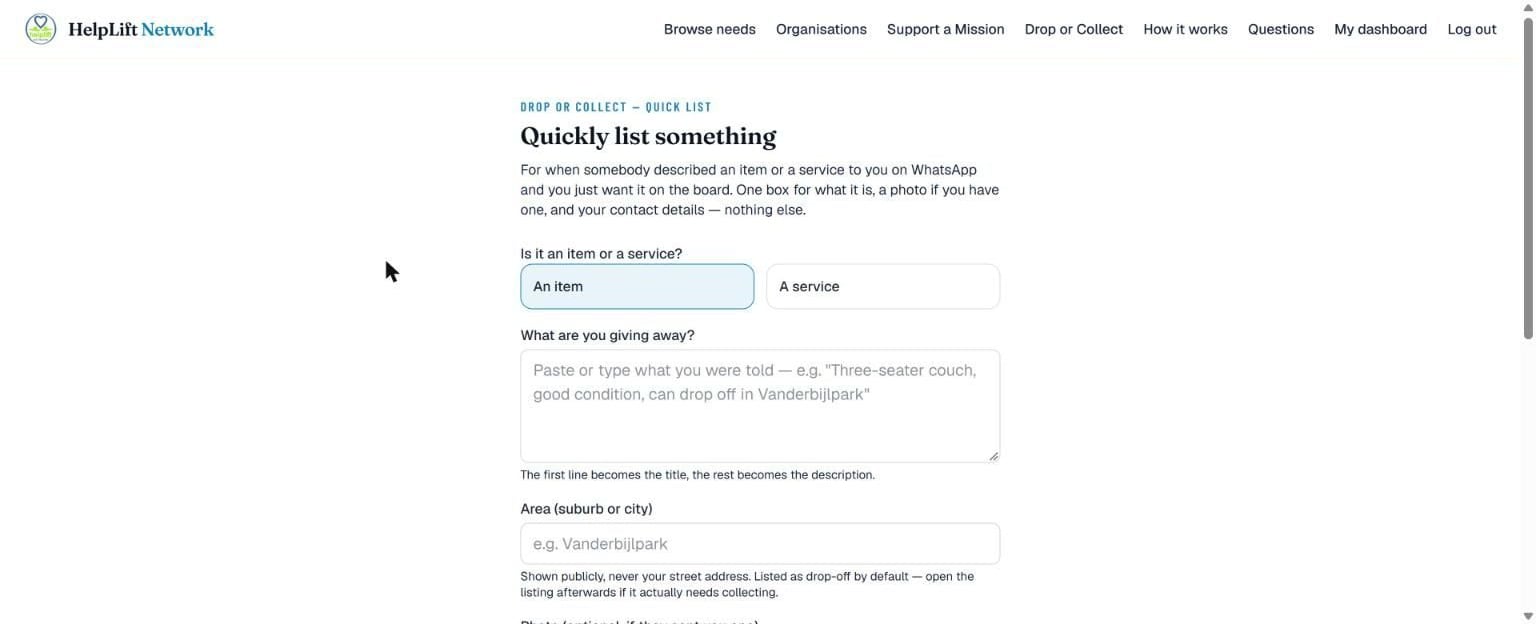
Organisations that take item donations hear about it first. If none of them claims it within 48 hours, it goes onto the public noticeboard.
Your safety: Your street address is never shown publicly. Only the organisation that claims your item ever sees it. In the Area box, type only your suburb or city, because that box is public.
Afterwards
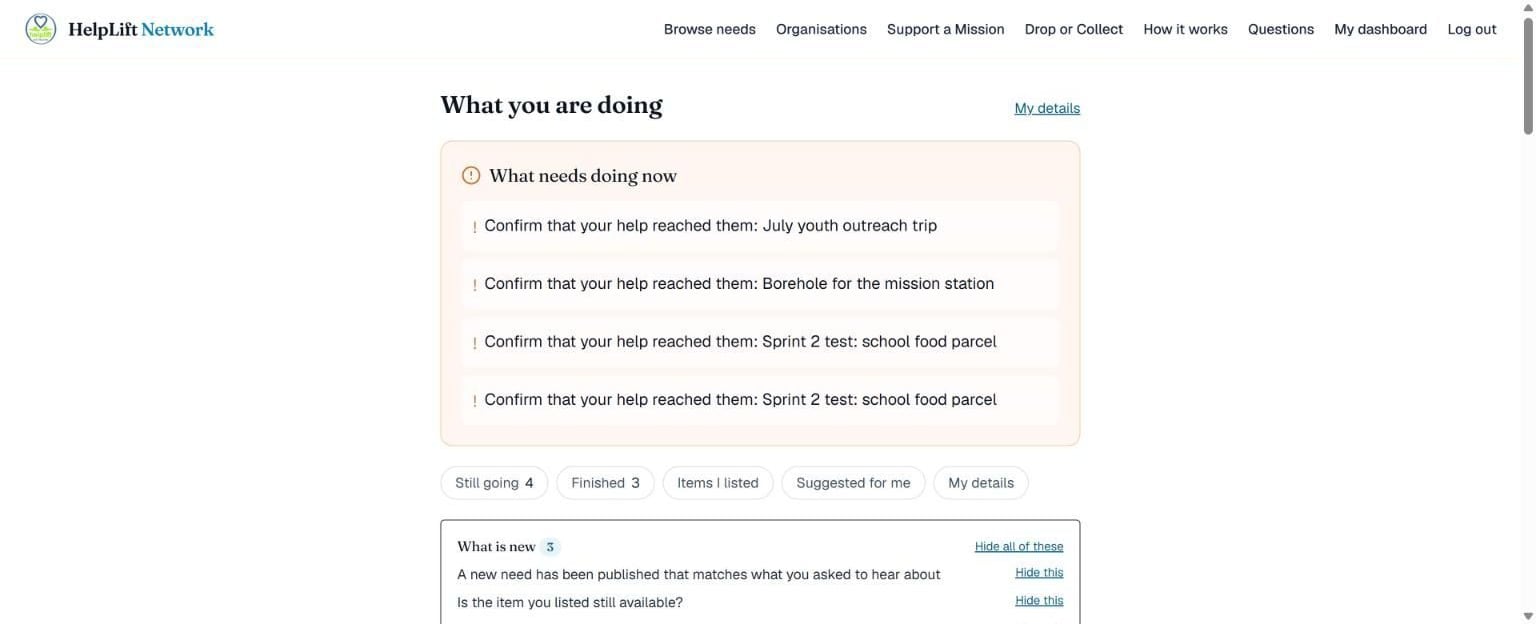
This is your own dashboard. What needs doing now reminds you to confirm that your help actually reached someone. Tap Confirm this reached them and you are saying "yes, this really happened."
Underneath, simple tabs sort everything: Still going, Finished, Items I listed, Suggested for me and My details.
Why confirming matters: Help counts as delivered once at least two of the three sides agree it arrived: the organisation, you, and the person who was helped. What does confirmed mean?
If something changes on your side
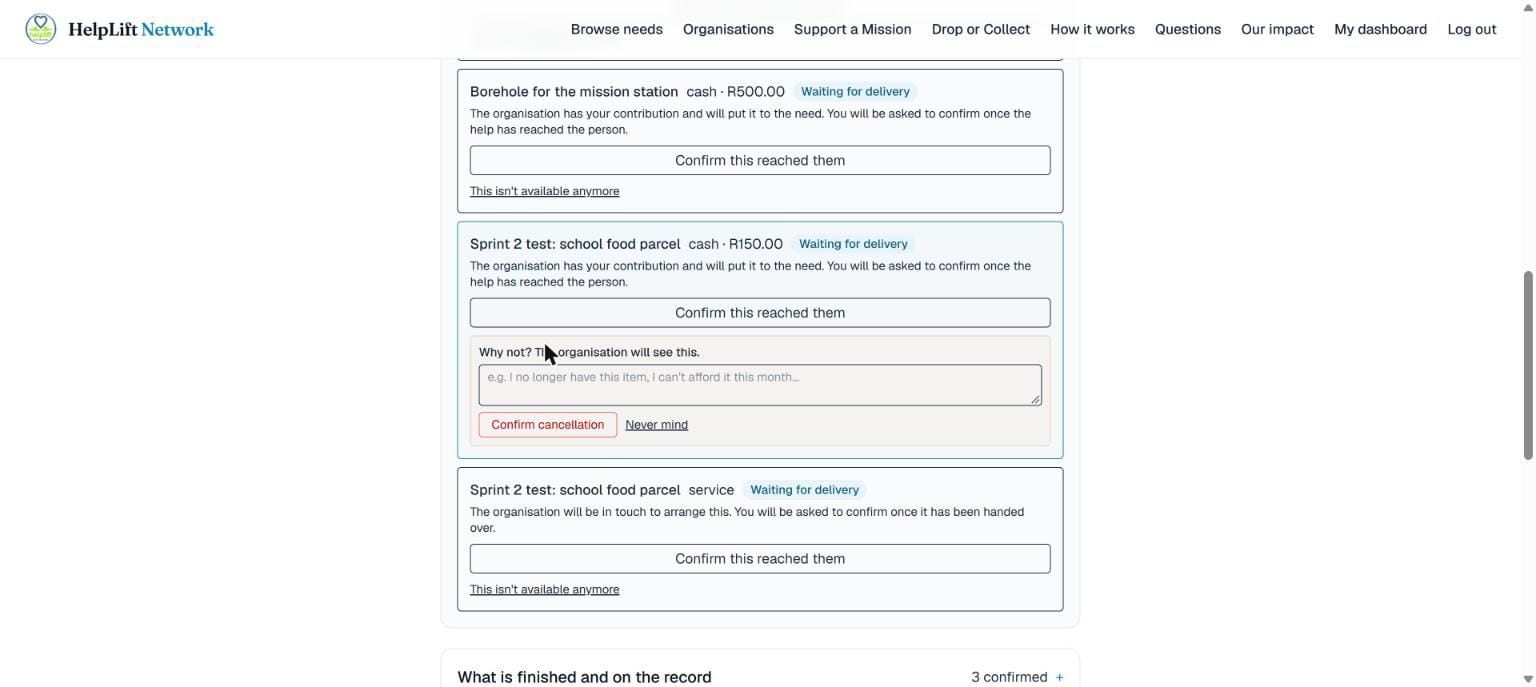
Plans change: the money is not there this month after all, or the item went somewhere else. Next to anything still waiting to be delivered, tap This isn't available anymore.
- A small box opens asking why. A reason is required: the organisation sees exactly what you write, so one honest line is enough, like "I no longer have this item" or "I can't afford it this month."
- Tap Confirm cancellation. The organisation is told straight away, so they stop waiting and can look elsewhere.
- Changed your mind? Tap Never mind to close the box without sending anything.
Once it is confirmed, it is final: This is only for something still waiting. Once help is confirmed as delivered it is a permanent record, and only a Super Admin correcting a genuine mistake can change it. Money you have already paid has already reached the organisation and is not refunded by cancelling.
The other guides
Welcome
Start here
What HelpLift is, who it is for, and how it all fits together.
Chapter 2
Organisation Admin
For the person in charge of a non-profit's HelpLift account: staff, money and the public profile.
Chapter 3
Organisation Staff Member
For someone who does the day-to-day work: capturing the people being helped, their needs, and the help that arrives.
Chapter 4
Super Admin
For the HelpLift team: check that every organisation is real, and keep the platform honest and safe.
Still stuck?
Search the help page in your own words, or open the full explanation of every part of HelpLift. If that does not answer it, send us a message and a real person will get back to you.