
Chapter 4
Super Admin
For the HelpLift team: check that every organisation is real, and keep the platform honest and safe.
HelpLift staff only.
Check new organisations
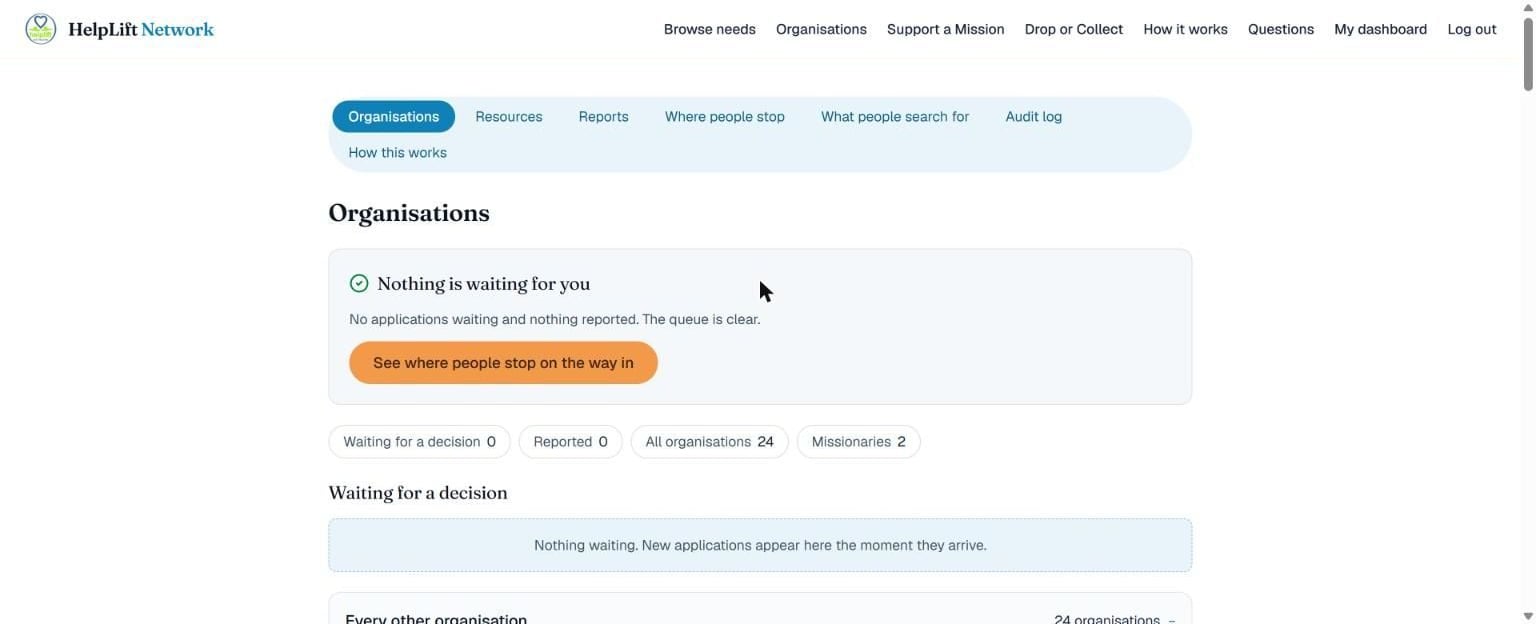
This is your home page. It tells you straight away whether anything needs a decision. The moment an organisation applies, it appears under Waiting for a decision. Open it, look at the papers it uploaded, and tap Approve or Decline. Either way, the organisation is emailed automatically.
Pause an organisation, a giver or a missionary
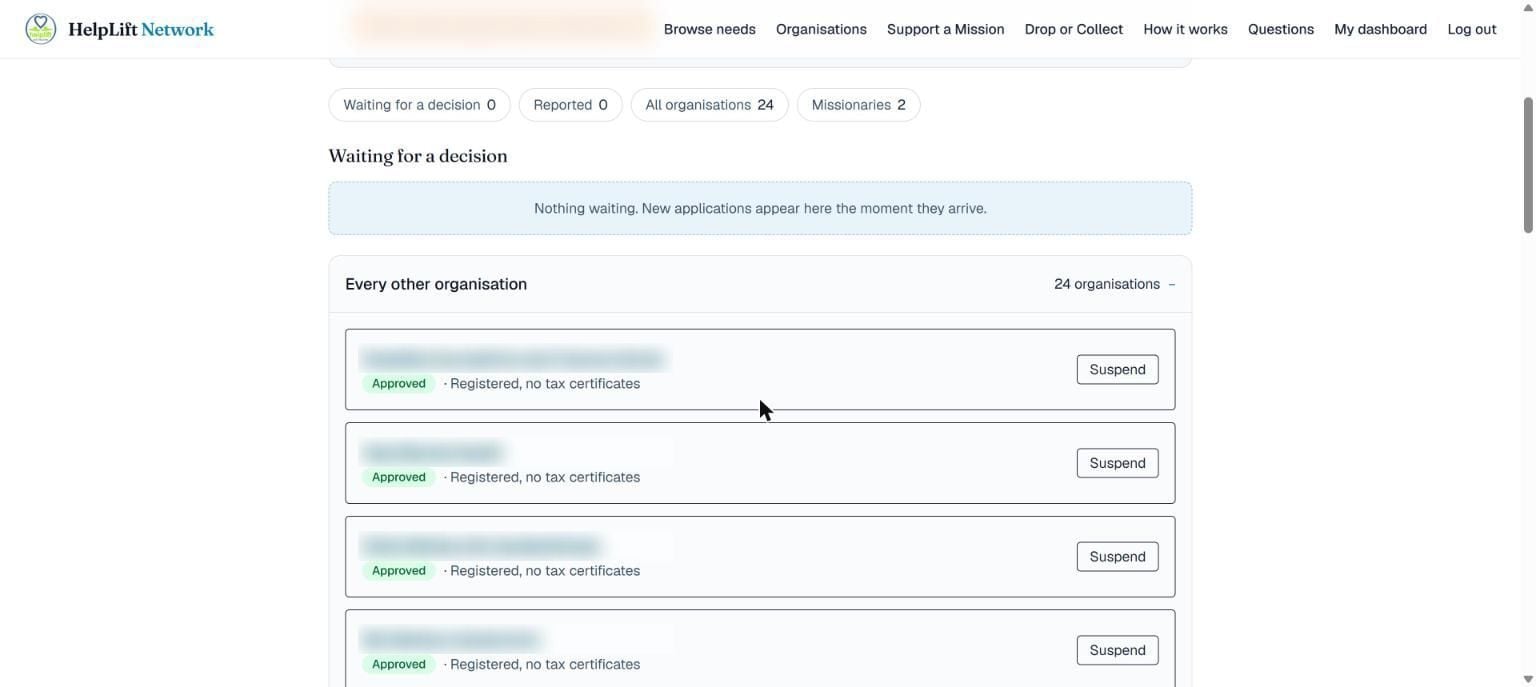
Every organisation is listed with a Suspend button. If something needs to stop right away, tap it: the organisation's needs leave public view immediately. Reinstate brings it back the same way.
The same works from the Resources tab for a giver, and on a missionary's own listing. Each takes effect everywhere at once.
Where people get stuck
Where people stop shows where real people give up partway through signing up or applying. What people search for shows what people typed into the help search, including searches that found nothing, and which answers and guide pages people said did not help.
Why it matters: Both show HelpLift what is confusing before it becomes a pattern of complaints. A search that found nothing is someone telling you, in their own words, what is missing.
See the big picture
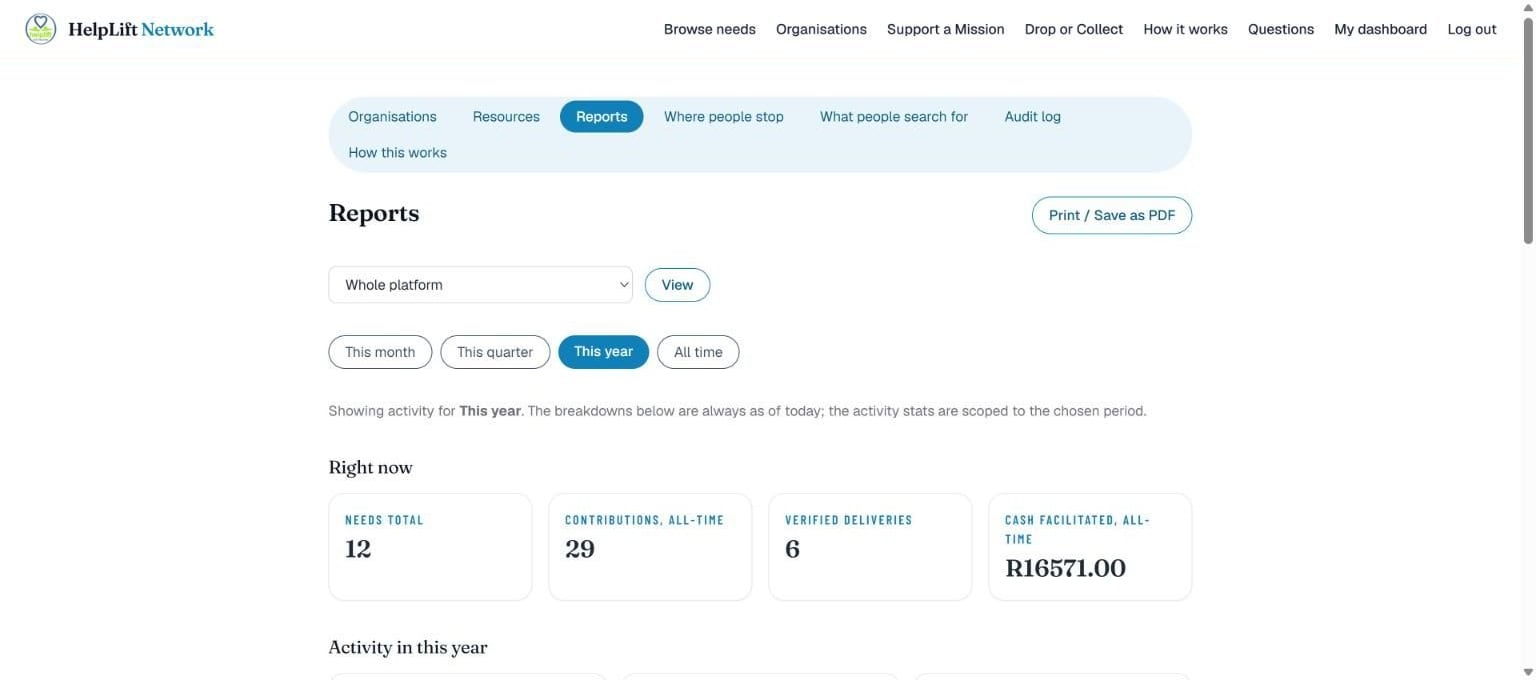
Reports adds up the whole platform for whichever period you pick: This month, This quarter, This year or All time, or an exact From / To range.
- The drop-down at the top switches between the whole platform and one organisation, so you can pull any organisation's exact report, the same one its own Admin sees, using that organisation's financial year.
- How many needs, how much was given, and how many gifts were confirmed as arriving, with breakdowns by status and category.
- Print / Save as PDF for a board or annual report.
The full history
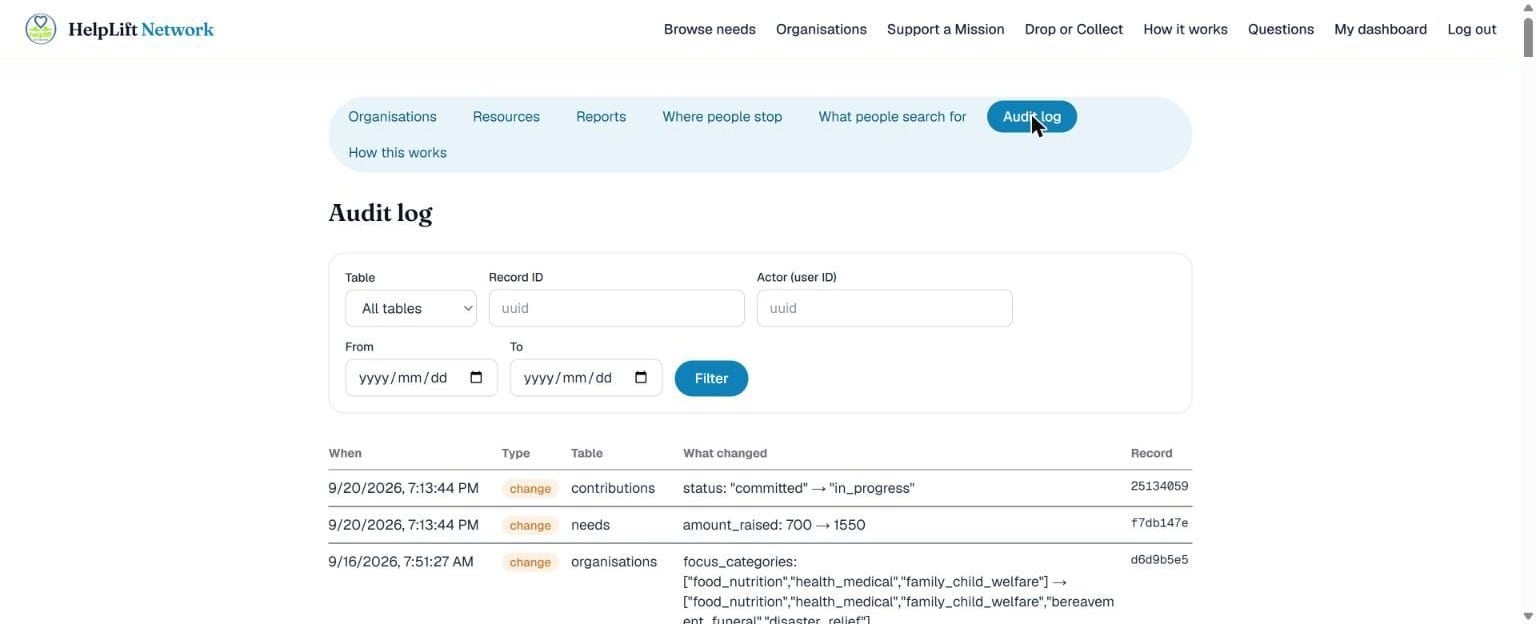
The Audit log remembers every important change: who did it, and what it changed from and to. Filter it by table, record, person or date.
Why this can never be switched off: It is written automatically by the database the moment something changes. No person, including a Super Admin, can skip it or turn it off.
The other guides
Welcome
Start here
What HelpLift is, who it is for, and how it all fits together.
Chapter 1
Giver (Resource)
For anyone who wants to give: money, goods, a service, or their time.
Chapter 2
Organisation Admin
For the person in charge of a non-profit's HelpLift account: staff, money and the public profile.
Chapter 3
Organisation Staff Member
For someone who does the day-to-day work: capturing the people being helped, their needs, and the help that arrives.
Still stuck?
Search the help page in your own words, or open the full explanation of every part of HelpLift. If that does not answer it, send us a message and a real person will get back to you.