
Chapter 2
Organisation Admin
For the person in charge of a non-profit's HelpLift account: staff, money and the public profile.
Up to three per organisation. An Admin can do everything a Staff Member can, and more.
Apply to join HelpLift
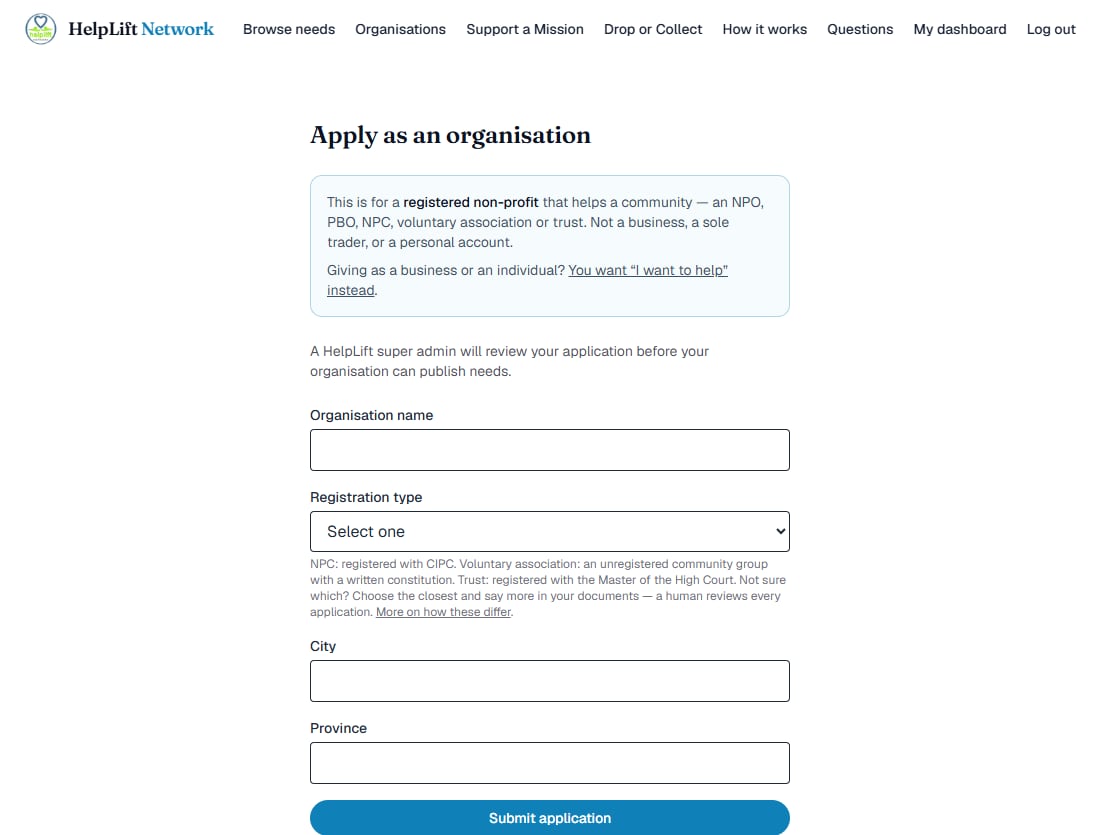
First sign up and choose the Organisation (NPO or Community Workers) card. Then fill in this short form:
- Your organisation's name.
- Your registration type: Non-profit company (NPC), Voluntary association, Trust, or Other if none of those quite fit. What is the difference?
- Your city and province.
Why someone checks every application: This keeps HelpLift trustworthy. Nobody can post a need or receive anything until a real person at HelpLift has said yes. You get an email the moment there is a decision.
Upload your papers
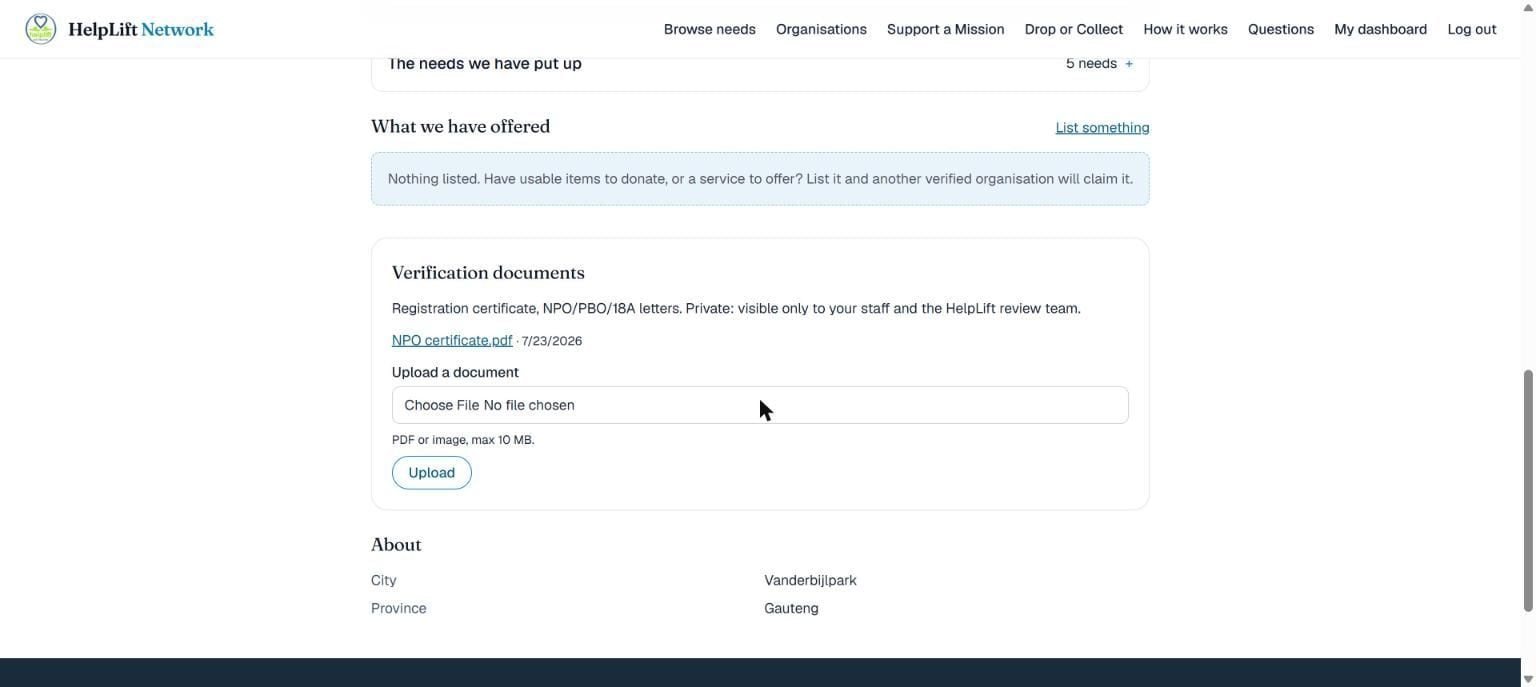
Further down your organisation's page, under Verification documents, upload your registration certificate and any NPO, PBO or Section 18A letters you have. A photo of the paper works fine, or a PDF, up to 10 MB.
The same page shows where your application stands, who reviews it, and how long that usually takes.
Your papers are private. Only your own staff and the HelpLift review team can ever open them.
Your organisation's home page
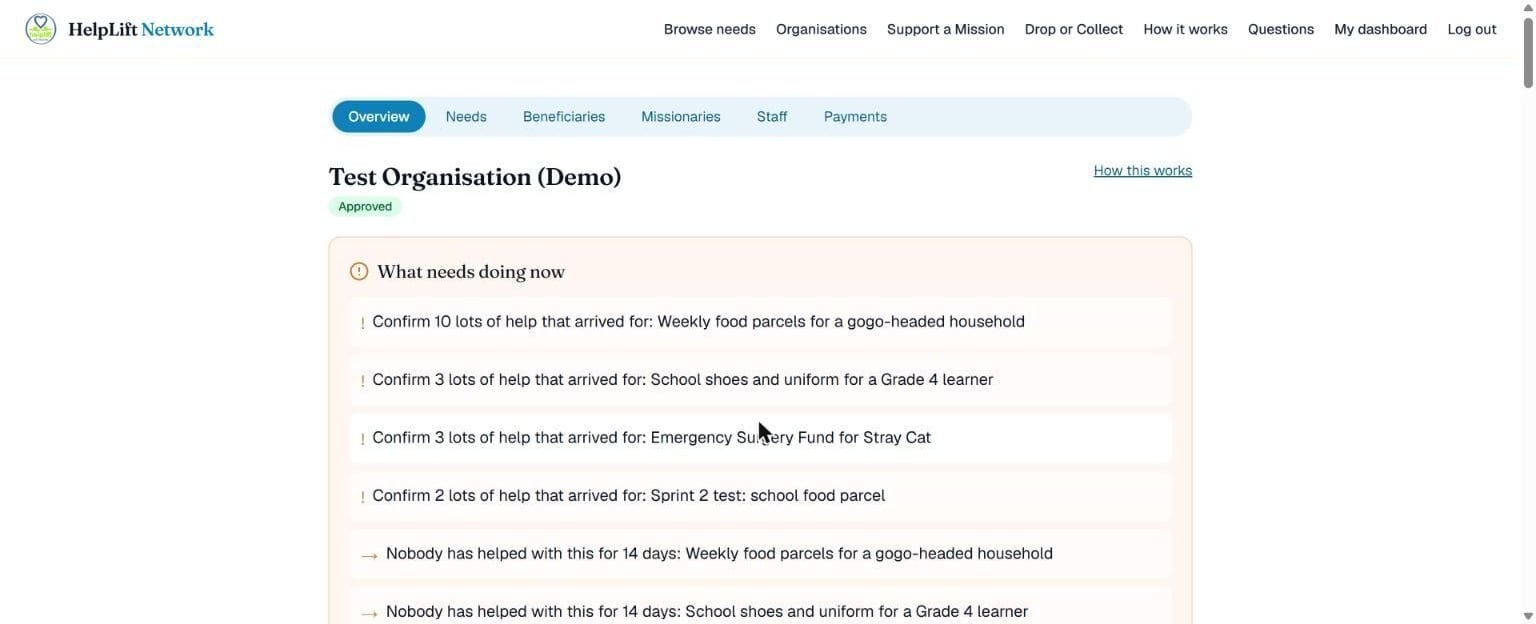
This is the first page you see after logging in. The green Approved tag means you are ready to go. What needs doing now is your to-do list: HelpLift tells you exactly what needs attention, like confirming help that has arrived.
The tabs across the top are where everything else happens: Overview, Needs, Beneficiaries, Missionaries, Staff, Payments, Reports and Affiliations. The rest of this guide walks through each one.
Publish your directory profile
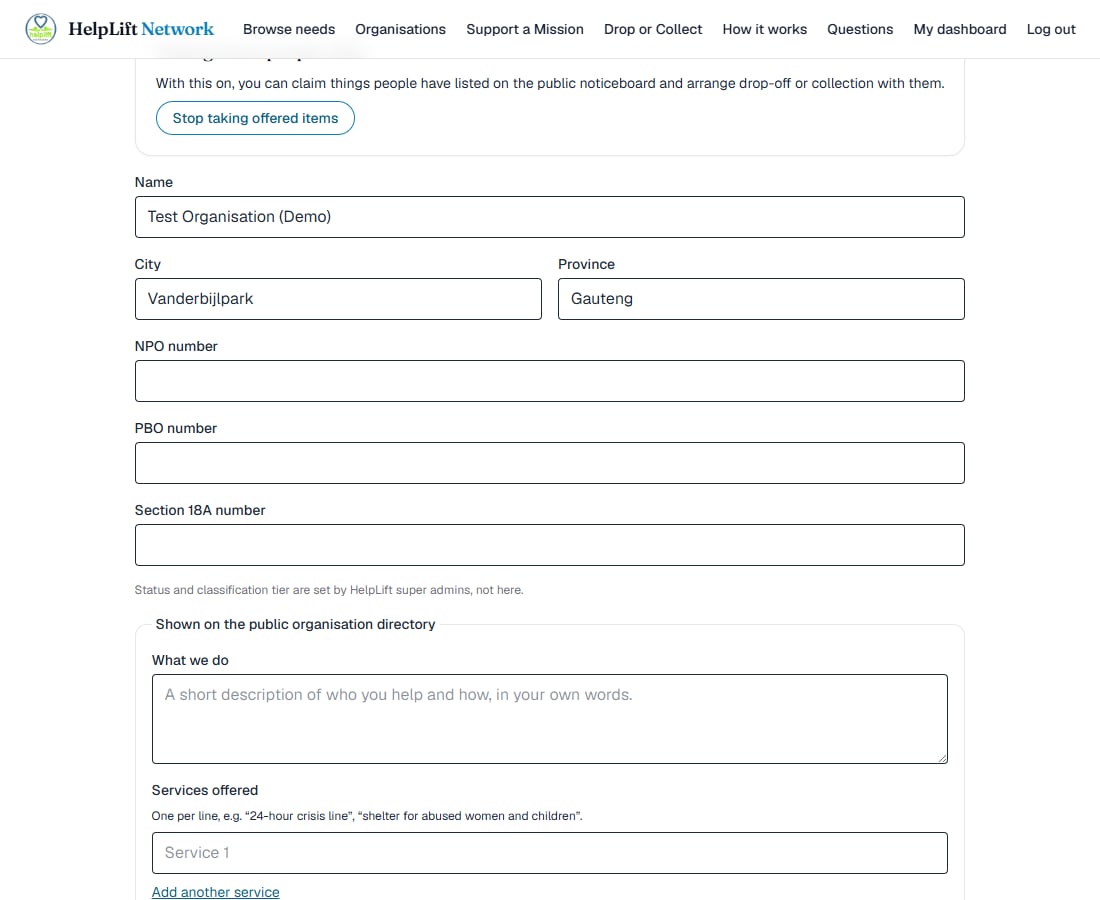
Still on your organisation's page, under Shown on the public organisation directory, you choose what the public and other organisations see about you:
- What we do: a short description of who you help and how.
- Services offered: one per line, not one paragraph. This is how other organisations find out what you specialise in, and send people your way instead of turning them away.
- Operating hours, and a phone number, email or website you are comfortable making public.
Near the top of the page, switch on Taking items and services people offer to claim things people list on Drop or Collect.
Never put a beneficiary's details in any of this. Everything here is public the moment you save it.
Your financial year, and email settings
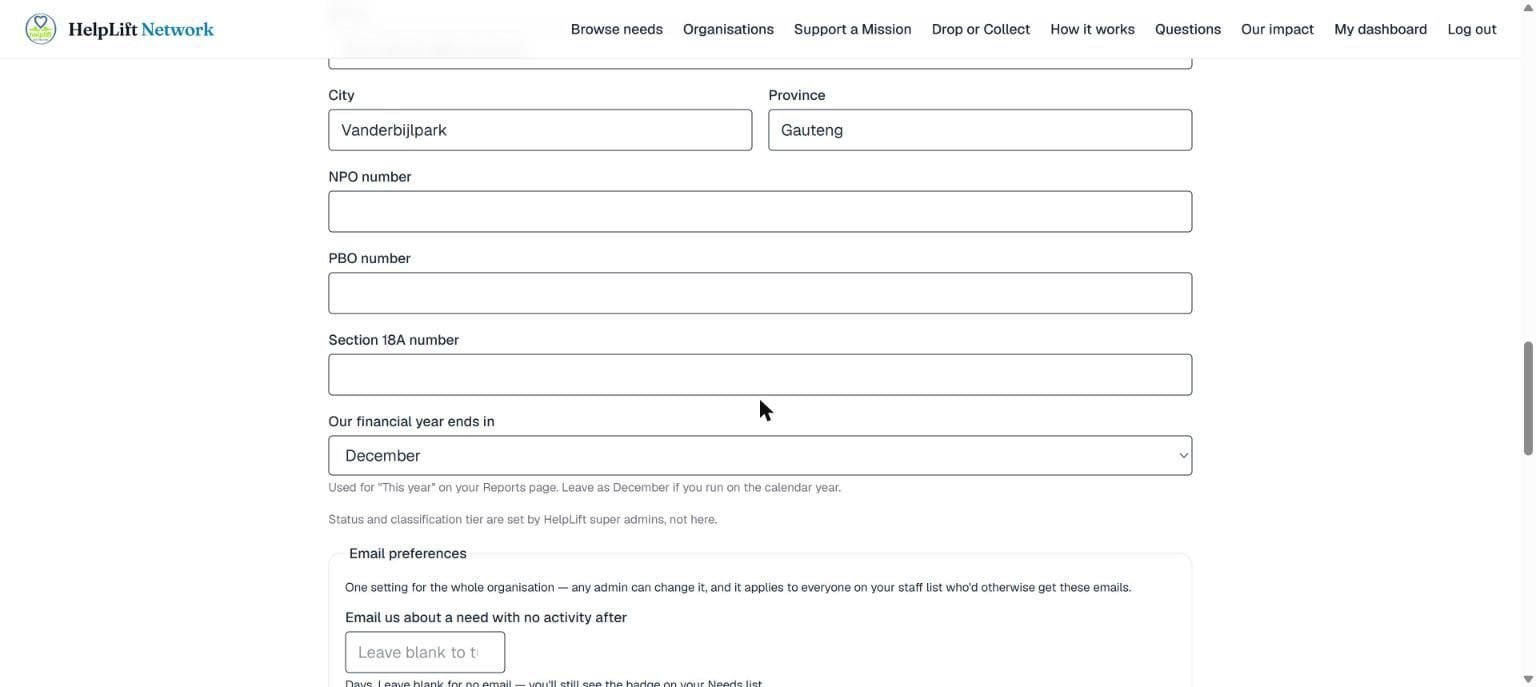
Further down the same page are settings that are yours to choose:
- Our financial year ends in: many South African non-profits run March to February, not January to December. Pick the month your year really ends, and This year on your Reports page follows it automatically. Leave it on December if you use the calendar year.
- Email us about a need with no activity after: type a number of days, and HelpLift emails your admins when a need goes quiet for that long. Leave it blank for no email; the warning badge still shows on your Needs list either way.
- Send a weekly summary: tick this for one email a week covering new needs, affiliate activity and confirmed deliveries.
One setting for the whole organisation: Any admin can change these, and they apply to everyone on your staff list who would otherwise get the emails.
Add your staff
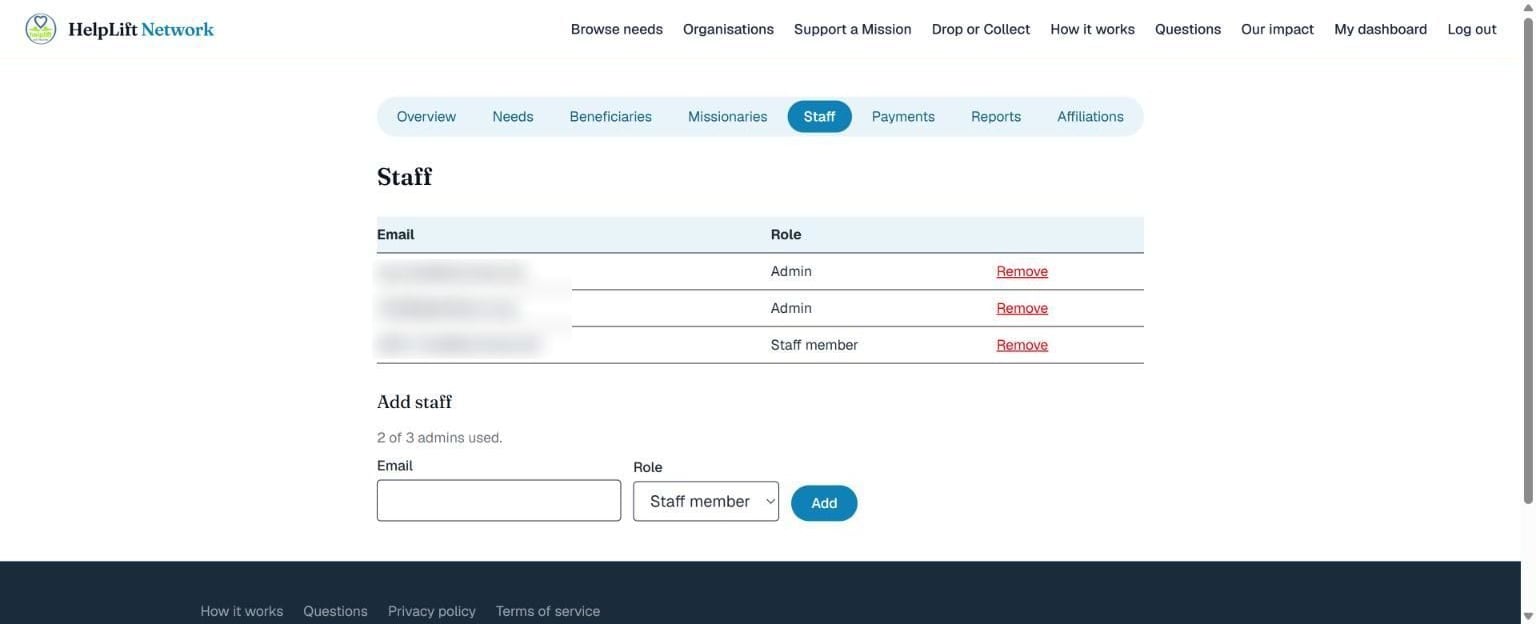
On the Staff tab you can see everyone who has access, and add someone new. They need a HelpLift account first, so ask them to sign up with the email address you will use here. Then:
- Type their email address.
- Choose their role: Admin (can do everything you can) or Staff member (needs and people only, not money or settings).
- Tap Add.
An organisation can have at most 3 admins at a time. The page shows how many you have used, and explains plainly if you try to go past it. Add everyone else as a Staff member: there is no limit on those.
Why a limit at all: An admin can touch money and your public profile, so keeping that group small is exactly what a funder or auditor wants to see.
Your bank details and money
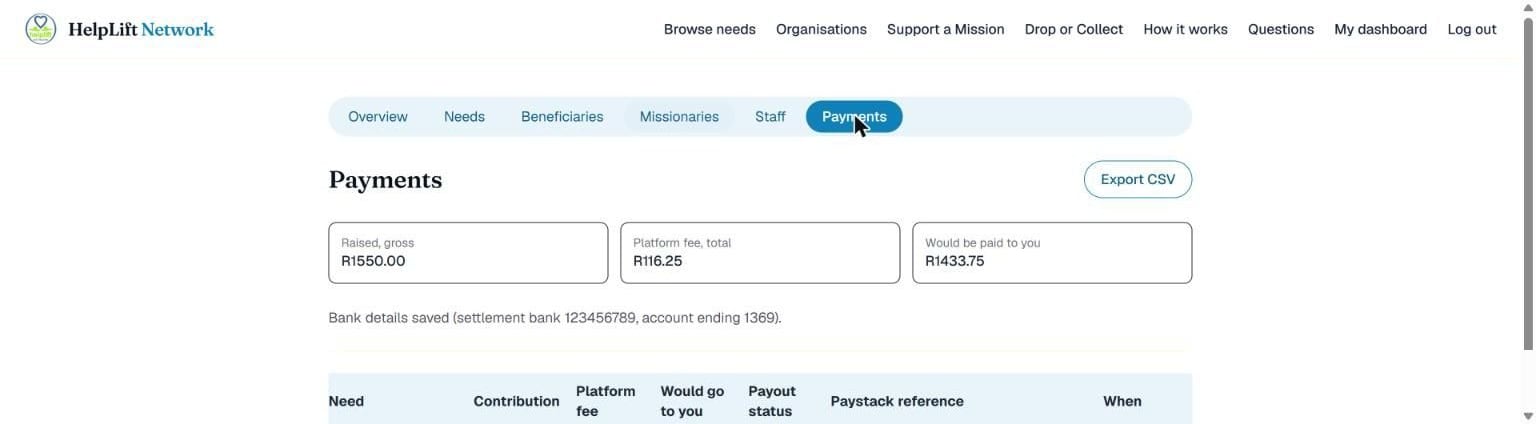
The Payments tab adds up everything your organisation has been given, with HelpLift's fee shown right next to it: always in the open, never hidden. Save your bank details here so money can reach you.
Cash is split at the moment it is paid. Your share goes straight to your own account and HelpLift never holds it. When does the organisation get the money?
Connect your bank account first: Until you choose your bank and save your account number here, givers cannot choose Cash on your needs, only goods and services. It takes a minute, and only an Admin can do it.
Your own reports
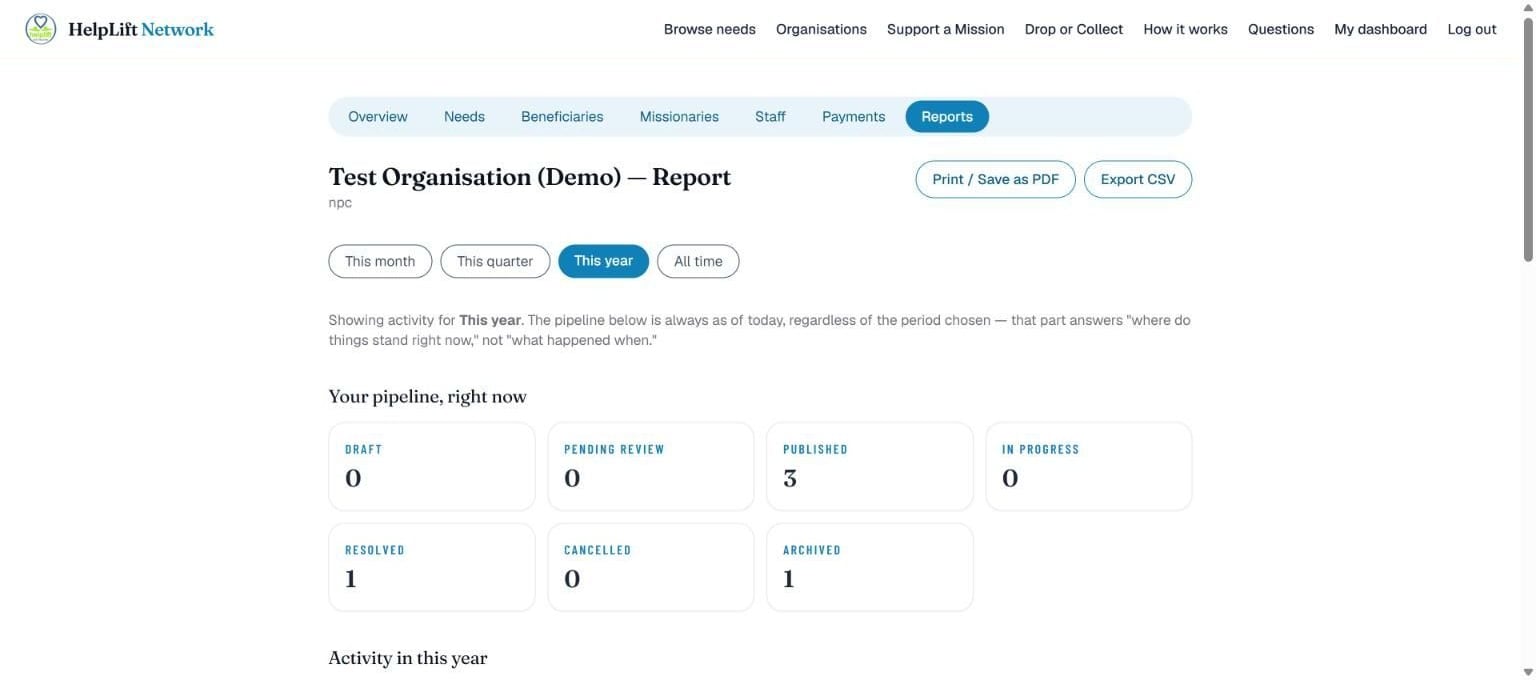
The Reports tab is a proper report for your organisation, not just a payments list. Pick This month, This quarter, This year or All time at the top, and everything below updates to match. This year follows the financial year you set.
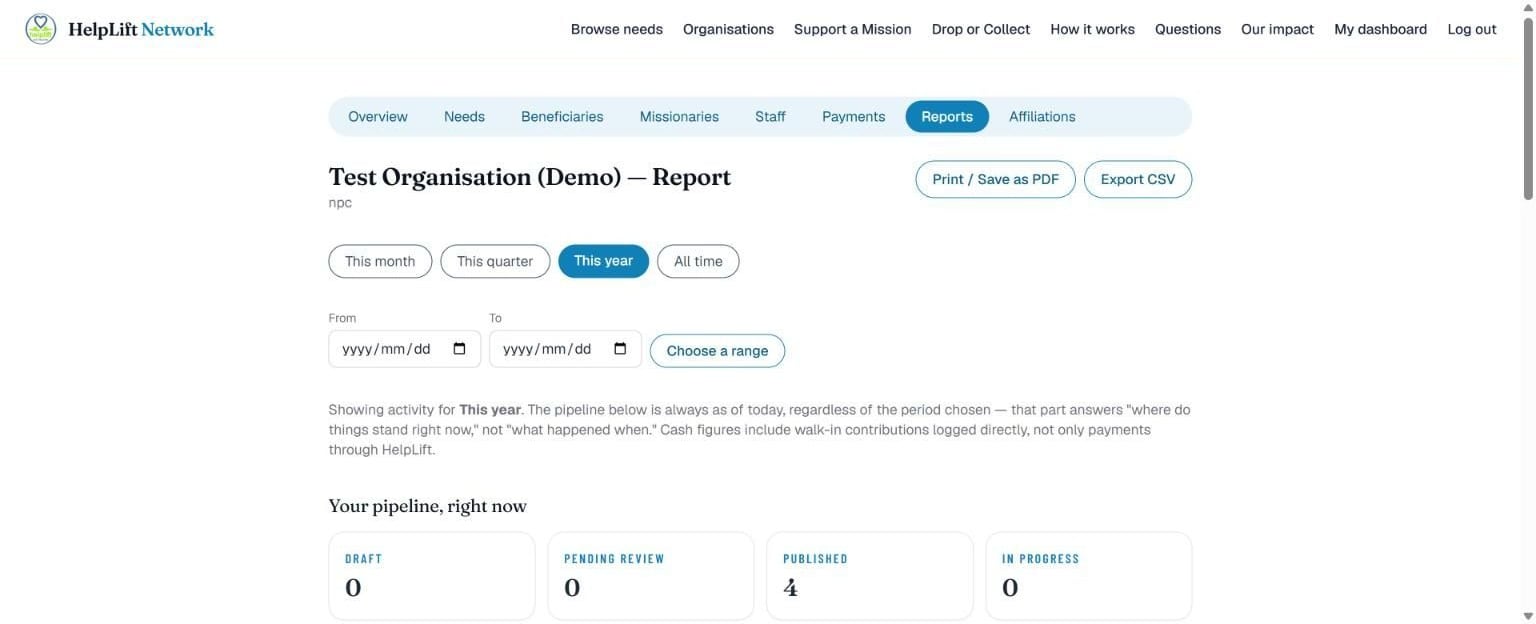
Need an exact window, for a grant period say? Fill in the From and To dates under the period buttons and tap Choose a range.
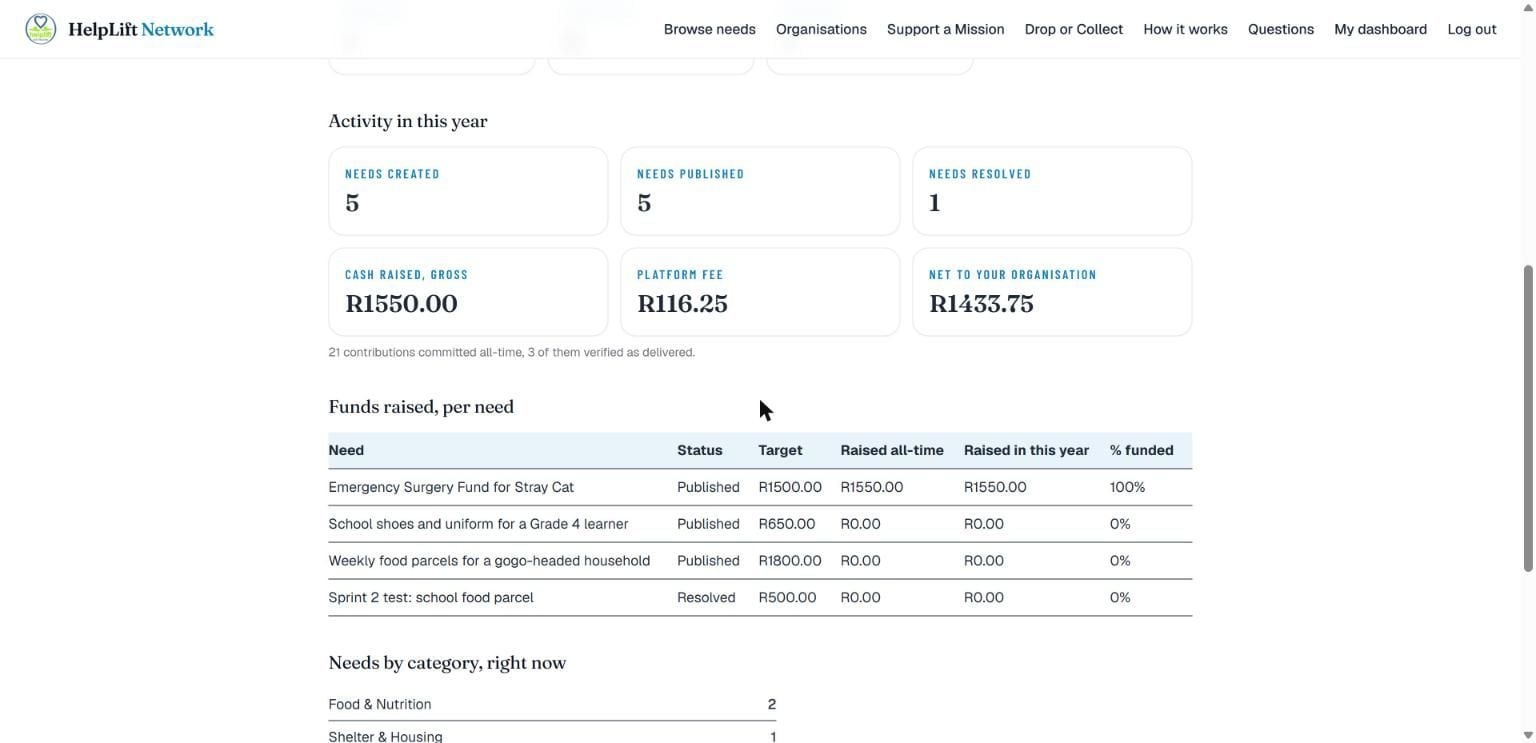
- Your pipeline, right now: how many needs are in each stage today.
- Activity: needs created, published and resolved, and cash raised (gross, fee, and what reached you) in the period you picked.
- Funds raised, per need: exactly what a board or funder asks for. Each need's target, what it has raised all-time and in this period, and the percent funded.
For your yearly or quarterly report: Tap Print / Save as PDF. It uses your browser's own print function, so it comes out as a clean document. Cash figures include walk-in contributions you have logged yourself, not only payments made through HelpLift.
Affiliations: organisations you work with
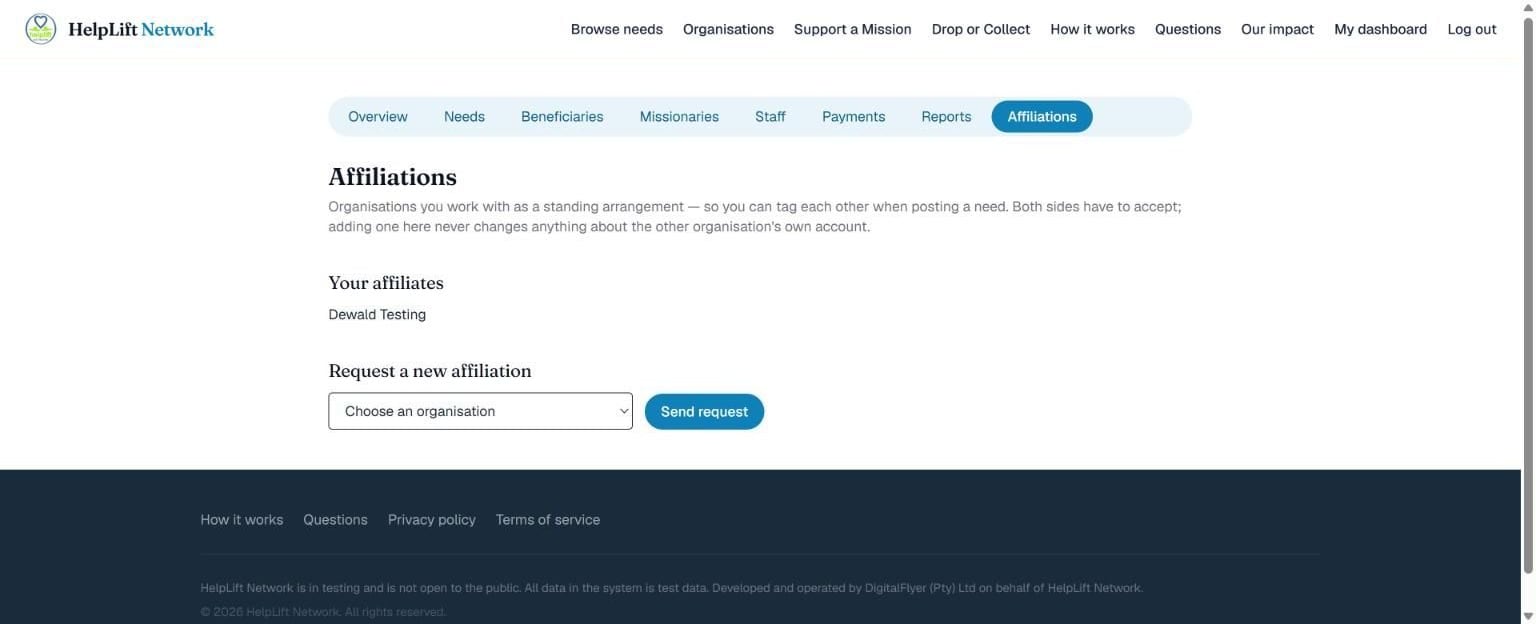
Some organisations already work together, like a clothing store down the road that always takes the overflow. The Affiliations tab makes that official on HelpLift:
- Pick the other organisation from the drop-down and tap Send request.
- It is mutual: nothing happens until they accept. Your own requests wait under Requests you're waiting on, with Withdraw if you change your mind.
- A request sent to you shows under Waiting for your decision, with Accept or Decline.
Once accepted, either of you can pick the other when publishing a new need, and they get an email about it. The need stays fully public under Browse needs either way.
Nobody is tagged by accident: A request only becomes an affiliation once the other organisation's own admin accepts it.
Beneficiaries
The Beneficiaries tab lists every person your organisation has captured, across all your needs: one place to look someone up instead of hunting through needs.
Private, always: Nobody outside your own staff and HelpLift's review team ever sees this list. It is deliberately kept out of every audit record too, so a person's details never end up in a change history by accident.
Your needs list
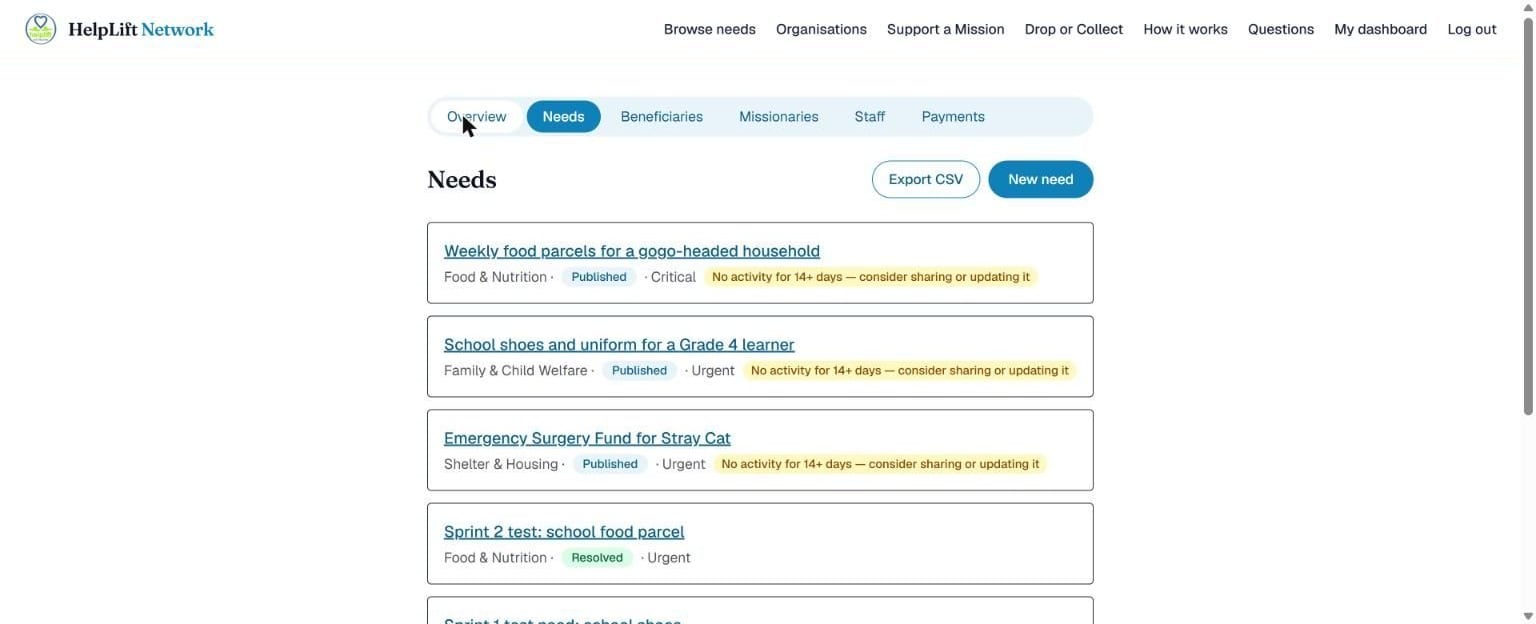
Every need your organisation has posted, in one list. Tap New need to add one, Quick capture for a fast one, or tap any need to open and manage it.
A yellow badge marks a need that has gone quiet, so you can share it, update it, resolve it or cancel it. Export CSV downloads every need and contribution as a spreadsheet, for your records, your board or a funder.
Capture a person, and their need
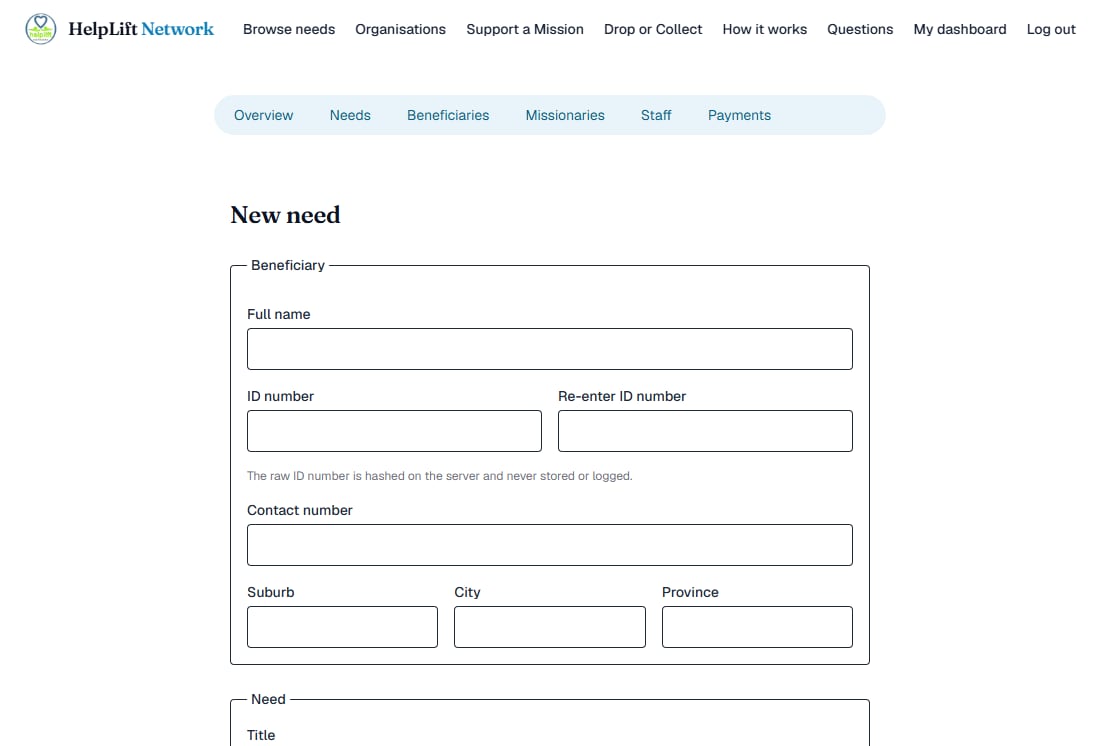
This form has two parts. First, who needs help:
- Their full name.
- Their ID number, typed twice to make sure it is right.
- A contact number and roughly where they live: suburb, city and province.
Then what they need: a short title and description, what kind of need it is, how urgent, what kind of help you will accept (cash, goods or a service), a target amount for money, and photos if you have them.
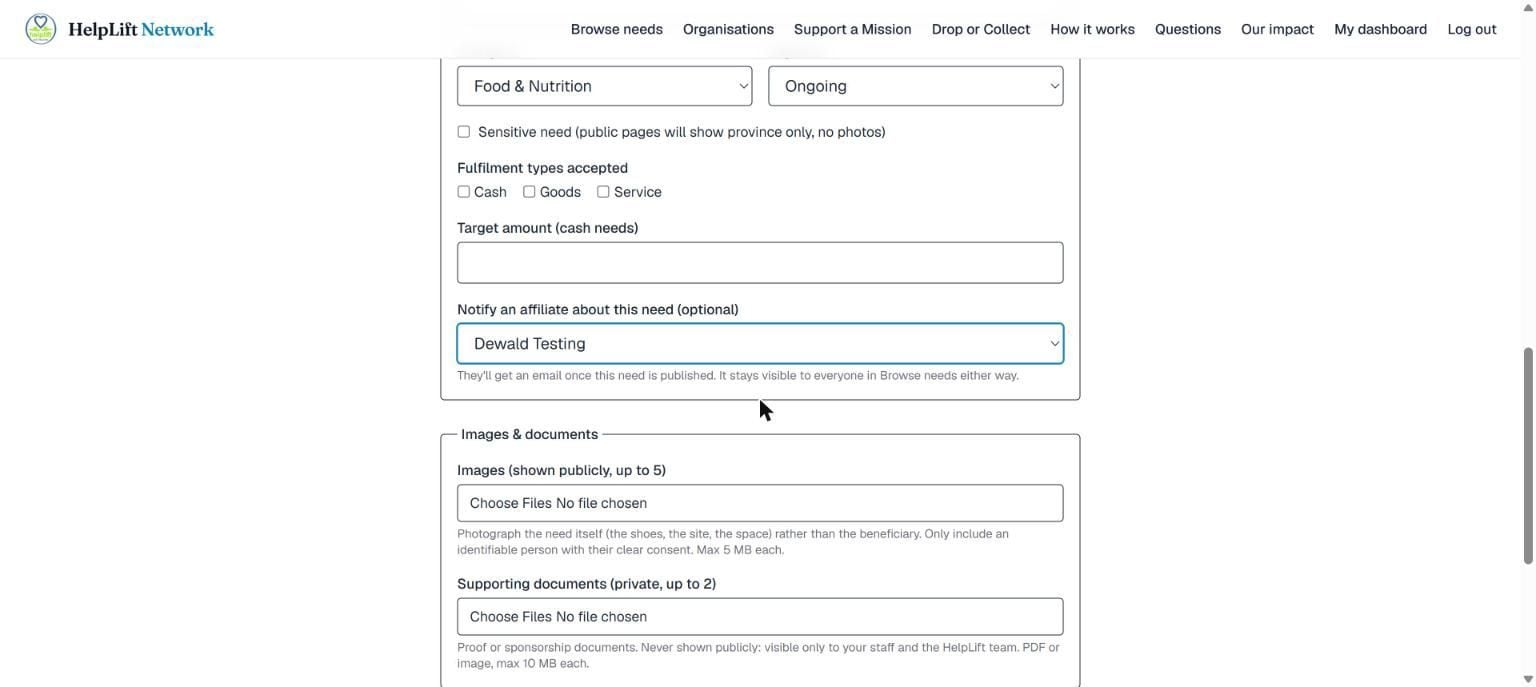
If you have accepted affiliates, a drop-down appears: Notify an affiliate about this need. Choose one and they get an email the moment you publish.
Your safety, and theirs: HelpLift never stores the real ID number. It is turned into a secret code straight away, and nobody, not even HelpLift staff, can see the real number again.
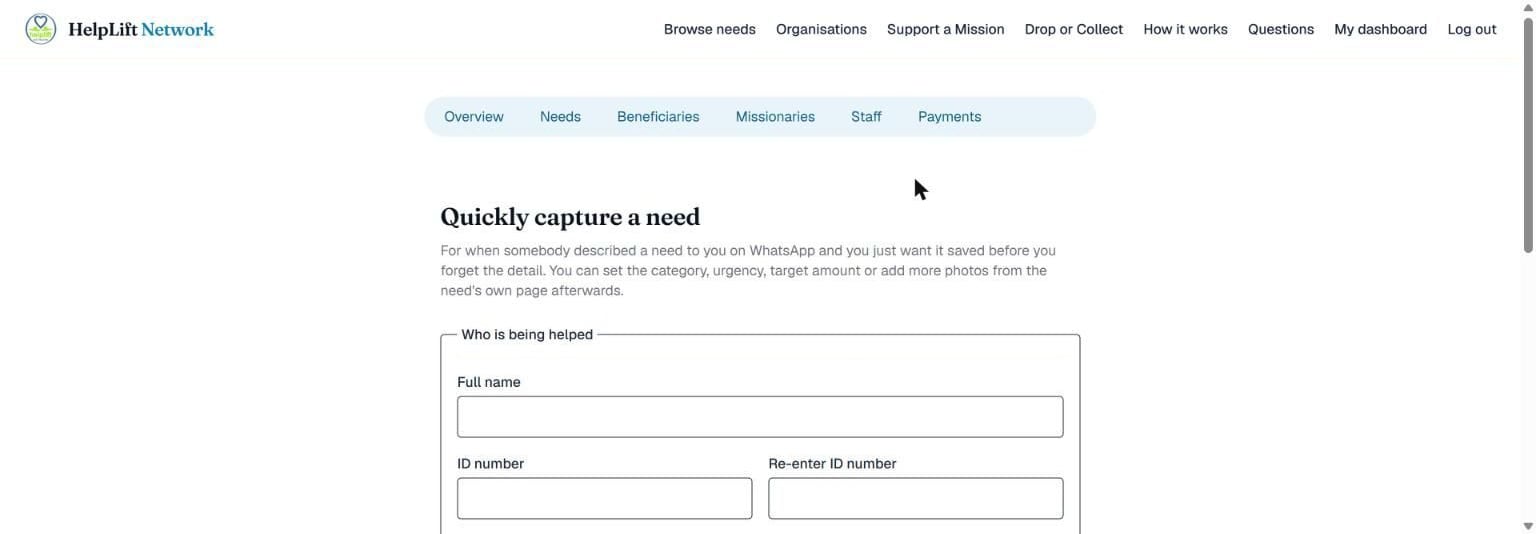
There is also Quick capture, for a need that came to you over WhatsApp. It is shorter, but the person's details still have to be filled in properly. That part never gets skipped.
Sensitive needs: Gender-based violence and protection needs are marked sensitive automatically: the public page shows the province only, and no photo.
Manage a need
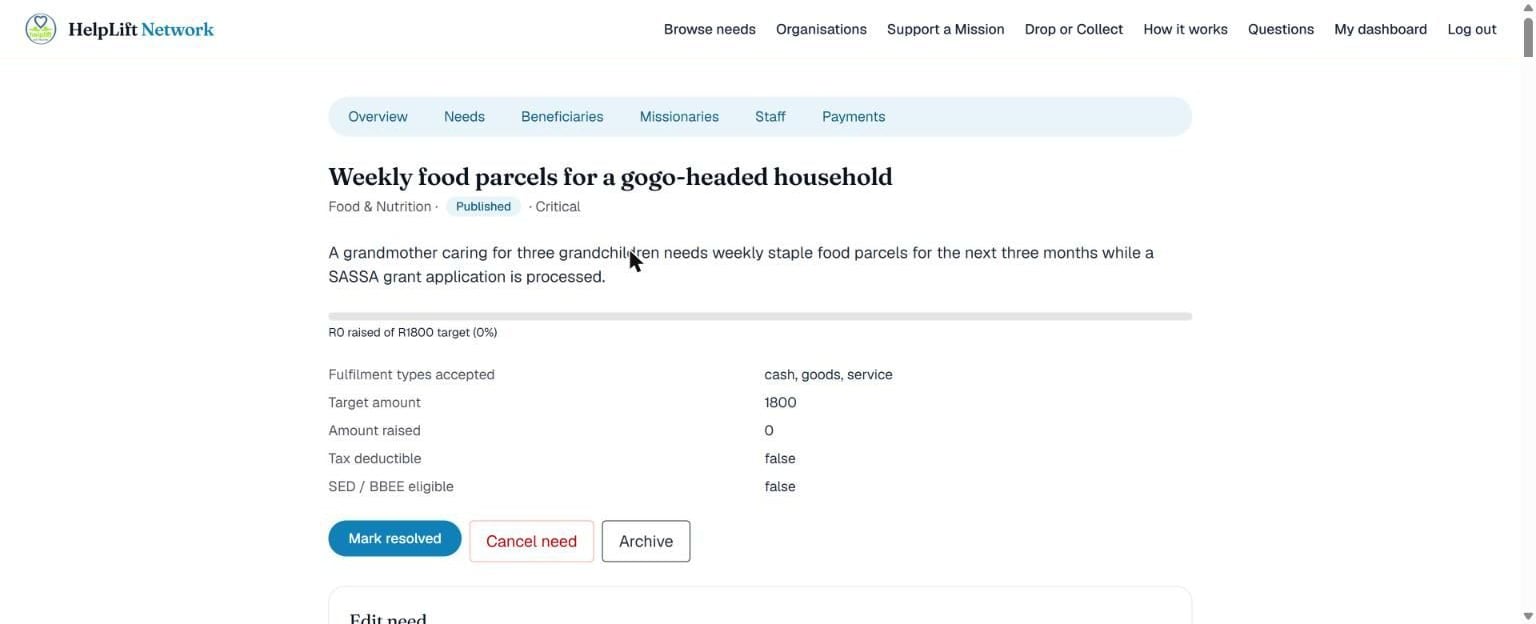
Open any need to see how it is doing, and to:
- Mark resolved once the need has really been met.
- Cancel need if it is no longer needed. Open commitments towards it are cancelled too, but anything already confirmed stays on the record. Cash already paid has already reached your organisation, and HelpLift has no refund process, so you agree directly with the giver what happens to it.
- Archive to tidy it away once it is done.
- Edit the title, description, category, urgency or target amount at any time. Every change is recorded.
When help arrives
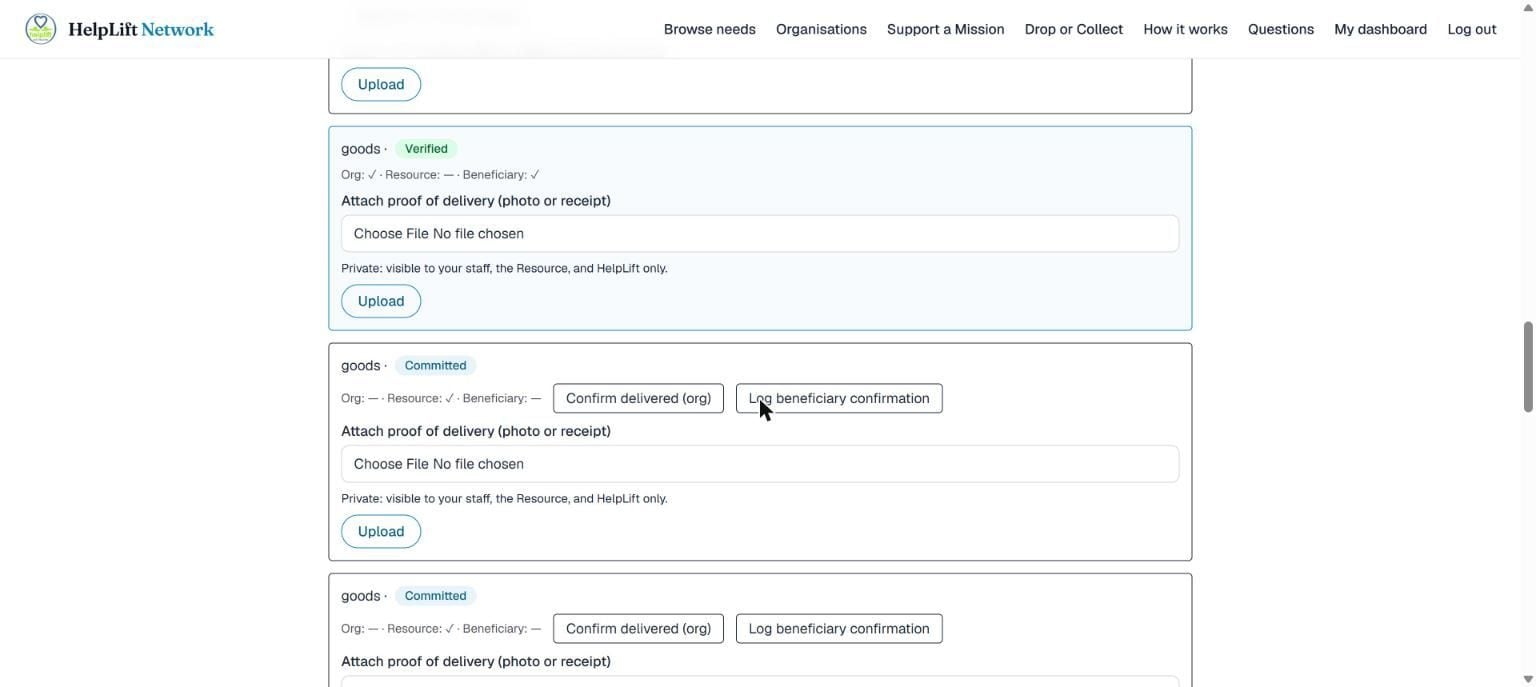
Further down a need's page, every gift towards it is listed. When something actually reaches the person:
- Tap Confirm delivered (org): your own confirmation that it happened.
- Tap Log beneficiary confirmation after speaking to the person yourself. They have no account of their own, so you record it for them.
- Under Attach proof of delivery, upload a photo or receipt if you have one. Only your staff, the giver and HelpLift can see it.
- Something arrived outside HelpLift, like a parcel left at your door or cash handed over? Fill in the small form at the bottom of the list and tap Log contribution, so your records and reports stay complete.
If a giver says it is no longer coming: You are told the moment a giver cancels something they committed to, with their reason, so you can stop waiting and look elsewhere.
Claim something from Drop or Collect
Once Taking items and services people offer is switched on, open anything on Drop or Collect and claim it. The giver's contact details, and their address if it needs collecting, become visible to you at that moment and not before.
Cannot use it after all? Release the claim and it goes back on the board for others.
Giving to another organisation: Your organisation can list something on Drop or Collect too, the same way a giver does. An organisation can never claim its own listing.
List a missionary
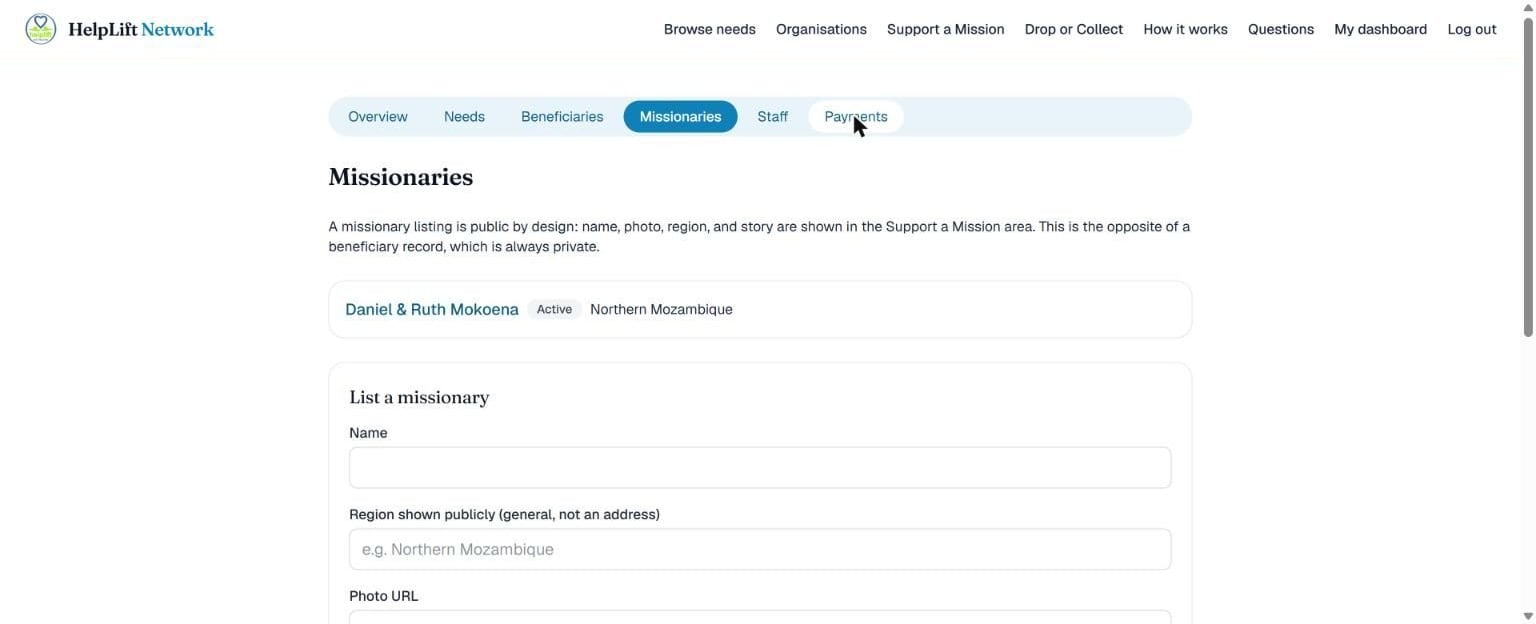
If your organisation supports a missionary, list them on the Missionaries tab with a name, a general region and their story. Then add the kinds of support they need: ongoing support, a project with a target, or a dated outreach.
Public by design: Unlike the people you help, a missionary listing is meant to be seen by everyone. Keep the region general, never a street address.
The other guides
Welcome
Start here
What HelpLift is, who it is for, and how it all fits together.
Chapter 1
Giver (Resource)
For anyone who wants to give: money, goods, a service, or their time.
Chapter 3
Organisation Staff Member
For someone who does the day-to-day work: capturing the people being helped, their needs, and the help that arrives.
Chapter 4
Super Admin
For the HelpLift team: check that every organisation is real, and keep the platform honest and safe.
Still stuck?
Search the help page in your own words, or open the full explanation of every part of HelpLift. If that does not answer it, send us a message and a real person will get back to you.