
Chapter 3
Organisation Staff Member
For someone who does the day-to-day work: capturing the people being helped, their needs, and the help that arrives.
Added by an Admin. Everything except staff, money and settings.
Your main job
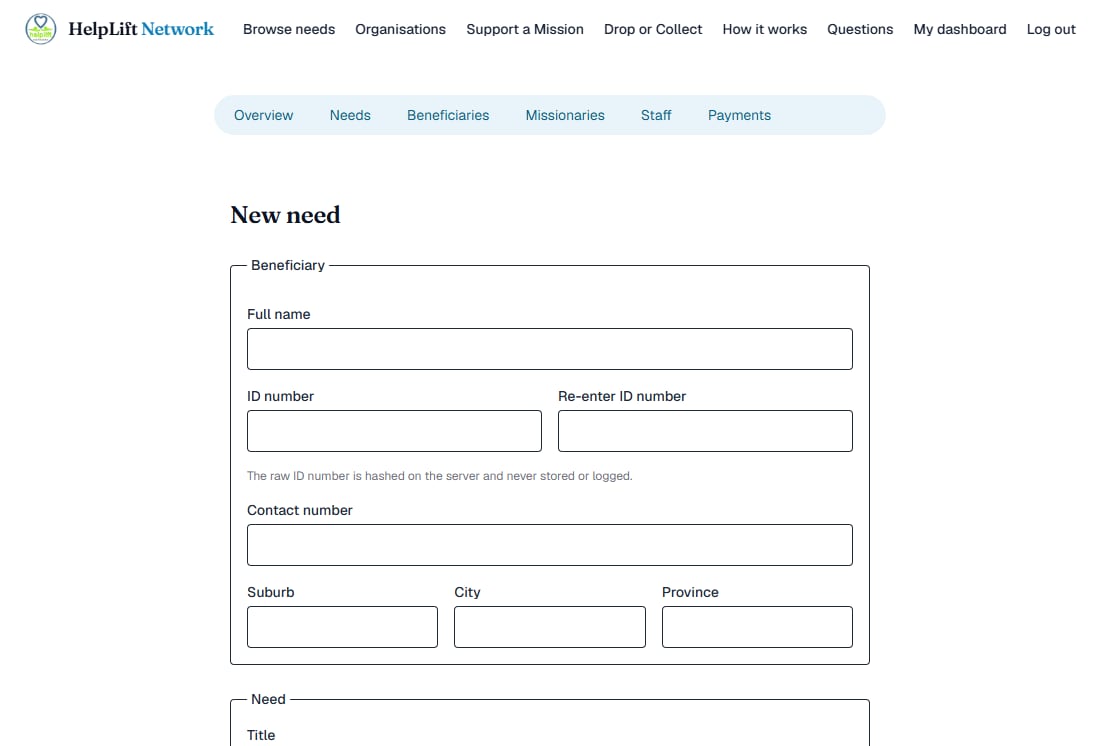
You use exactly the same screen as an Admin: see Capture a person, and their need. Capture the person who needs help, then describe what they need. Quick capture is there for you too, including notifying an affiliate if your organisation has one.
Watch for this: If someone's ID number matches a person another organisation is already helping, HelpLift tells you which organisation, and nothing more. Contact them before you carry on, so nobody is helped twice by accident.
Beneficiaries and managing a need
The Beneficiaries tab, and everything on a need's own page (Mark resolved, Cancel need, Archive and editing), work exactly the same for you as for an Admin. See Manage a need.
Receiving help
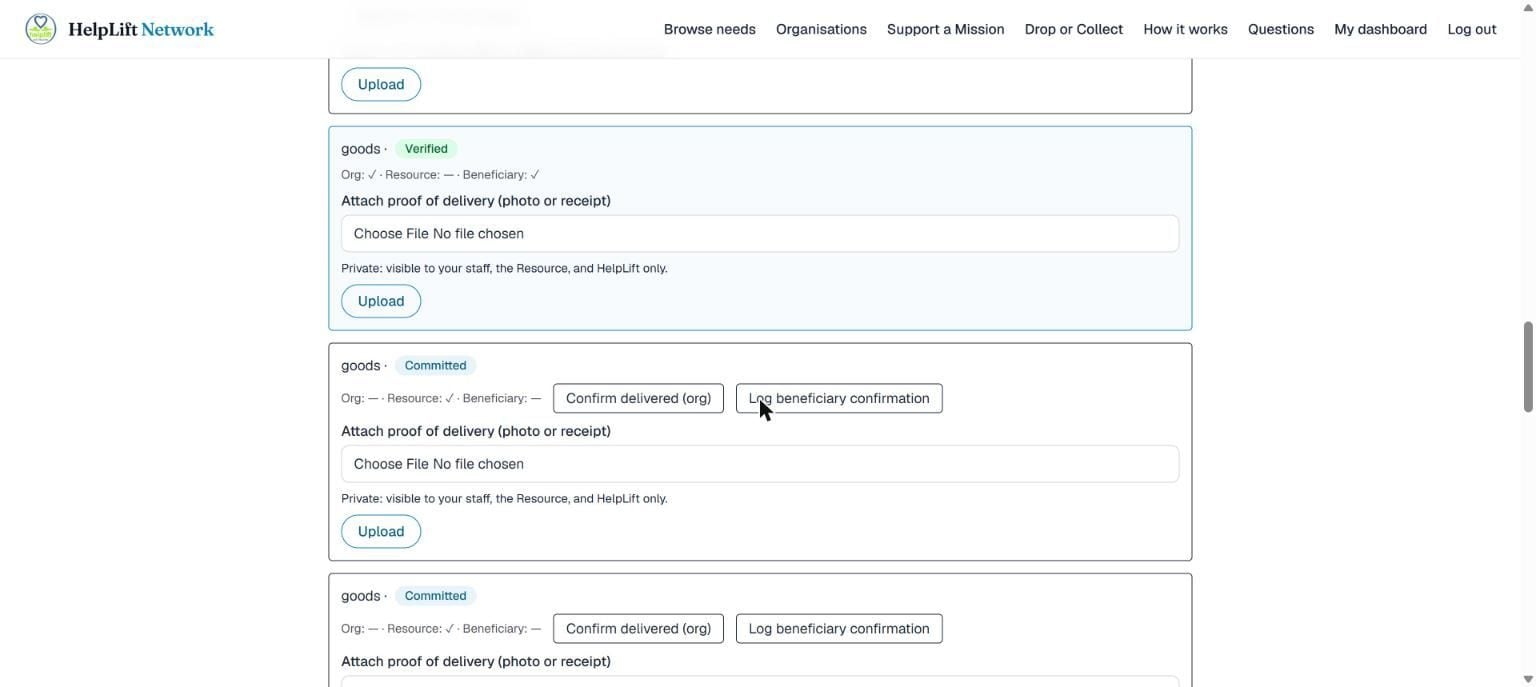
This is daily work for you, not only for an Admin. In short (the full walkthrough is in When help arrives):
- Claim an item someone has listed on Drop or Collect, if your organisation takes item donations.
- Confirm delivered (org) and Log beneficiary confirmation once help actually reaches someone.
- Upload proof, and use Log contribution for anything that arrived outside HelpLift.
- You will see it when a giver cancels something, with their reason.
Listing a missionary
Also exactly the same as an Admin: see List a missionary. A missionary listing is public by design, so there is no money or staff involved in doing it.
Things only an Admin can do
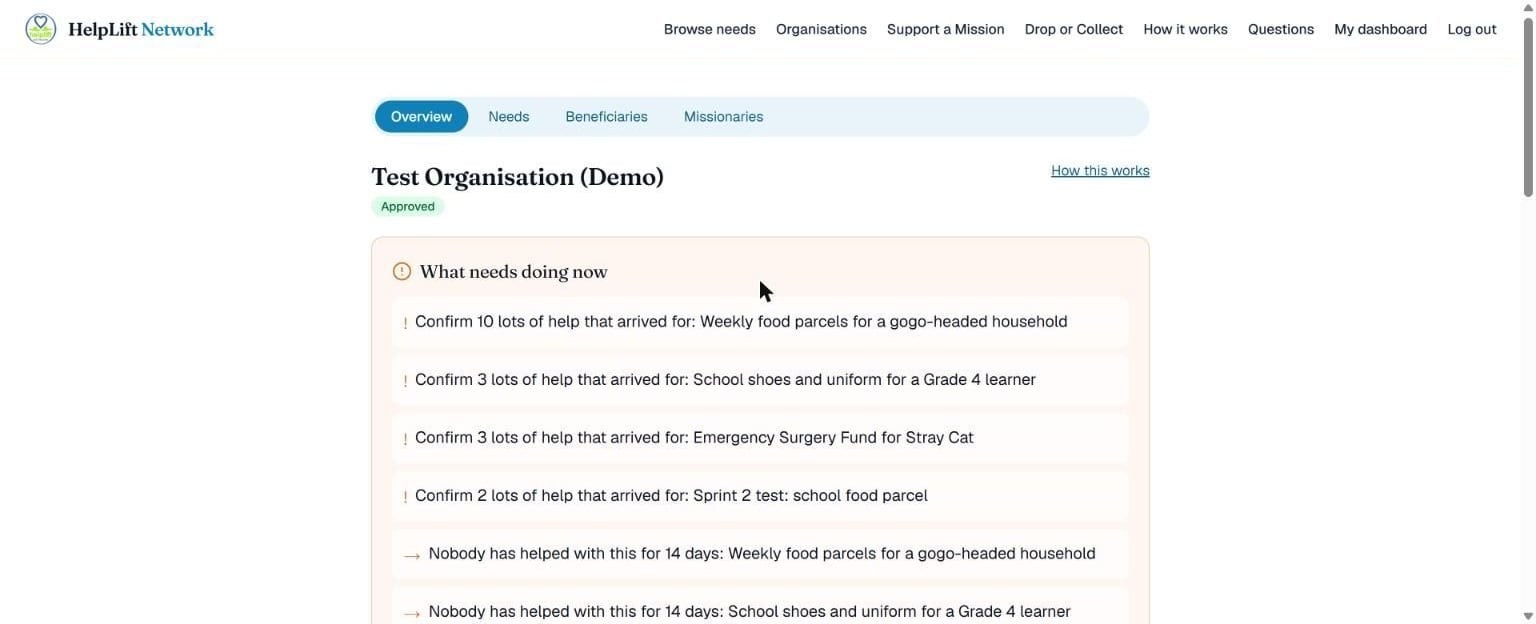
Compare the tabs across the top of this picture with an Admin's. An Admin also sees Staff, Payments, Reports and Affiliations. You do not: they are simply not there for you.
Not for you to worry about
- Adding or removing staff
- Seeing or changing bank details, or the organisation's reports
- Editing the public profile, the financial year or the email settings, or switching Drop or Collect on or off
- Requesting, accepting or managing affiliations
This is not because HelpLift does not trust you. It keeps the number of people who can touch money or change what the public sees small, which is exactly what a funder wants to see.
The other guides
Welcome
Start here
What HelpLift is, who it is for, and how it all fits together.
Chapter 1
Giver (Resource)
For anyone who wants to give: money, goods, a service, or their time.
Chapter 2
Organisation Admin
For the person in charge of a non-profit's HelpLift account: staff, money and the public profile.
Chapter 4
Super Admin
For the HelpLift team: check that every organisation is real, and keep the platform honest and safe.
Still stuck?
Search the help page in your own words, or open the full explanation of every part of HelpLift. If that does not answer it, send us a message and a real person will get back to you.